Tutorial
Join our community of 3D artists and start earning by selling your assets.
Author's Guide: Account Setup and Model Publishing
Create your unique gallery in our 3D model store, where your work can be discovered by tens of thousands of potential buyers. The more models you upload, the more opportunities you have to maximize your earnings
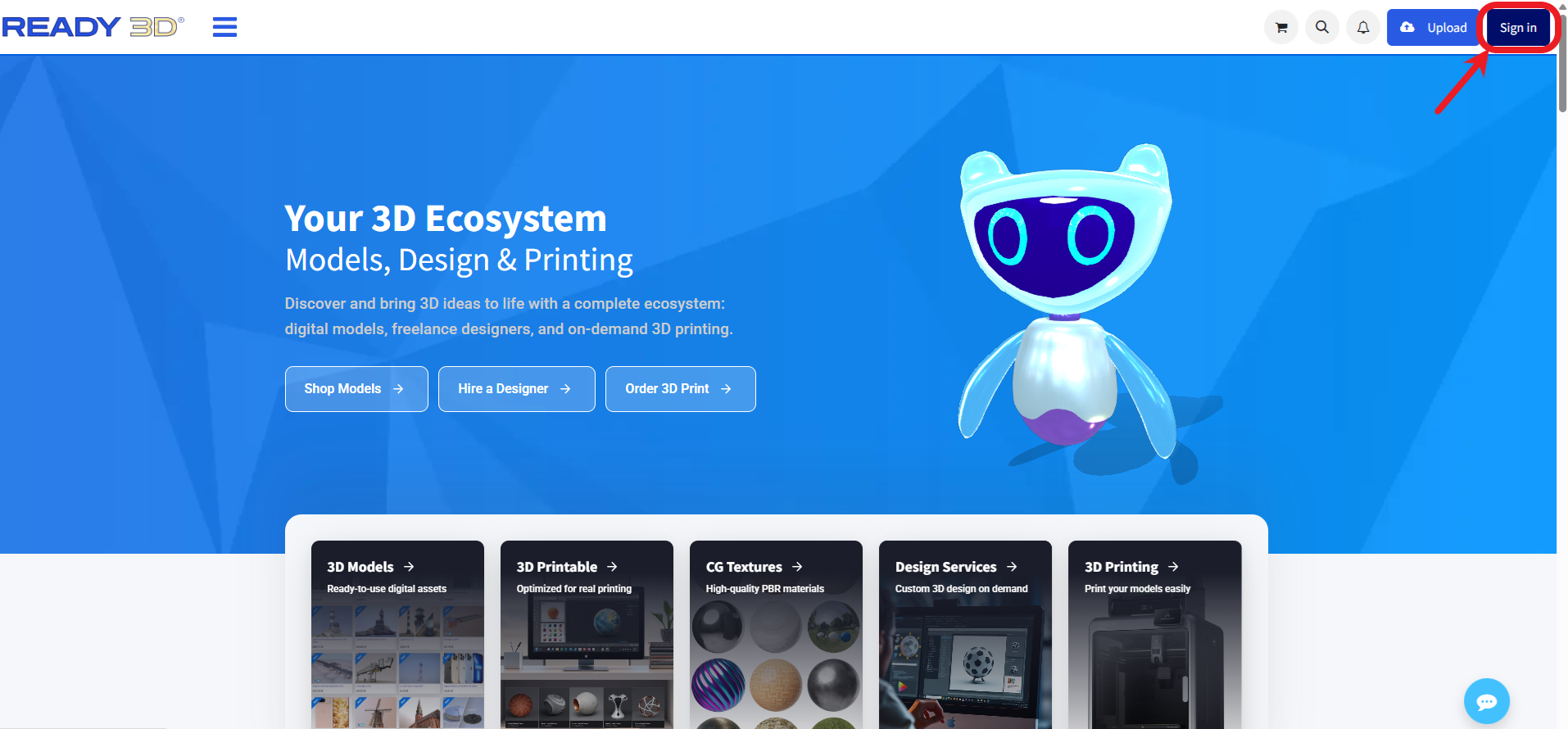
To begin the setup, click the “Sign in” button in the top right corner of the homepage.
Sign In & Registration
If you already have an account, simply log in by entering your email address and password in the opened window.
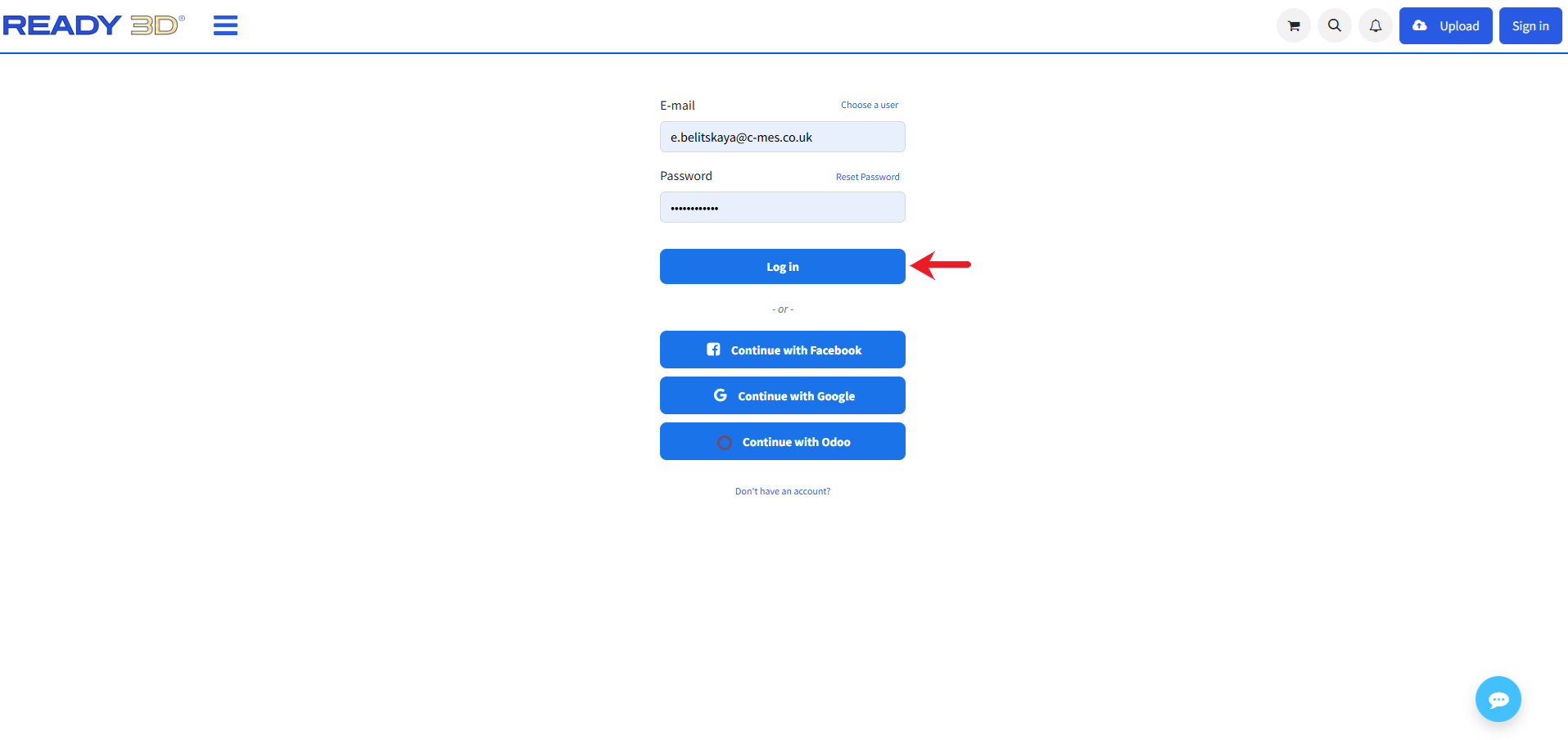
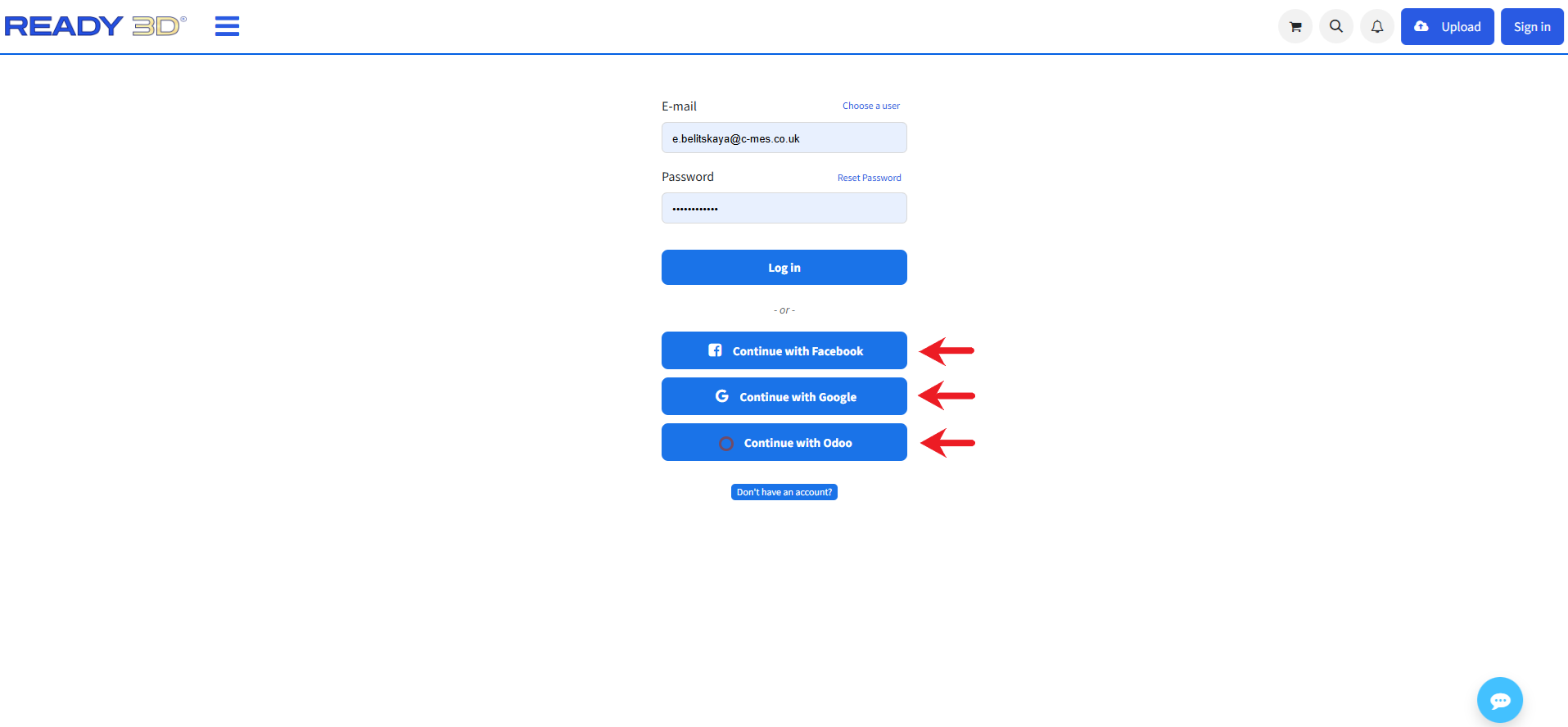
If you do not have an account yet, click “Don't have an account?” link to start the registration process.
Enter your valid personal details to complete the registration form.
Alternative Sign-In Options
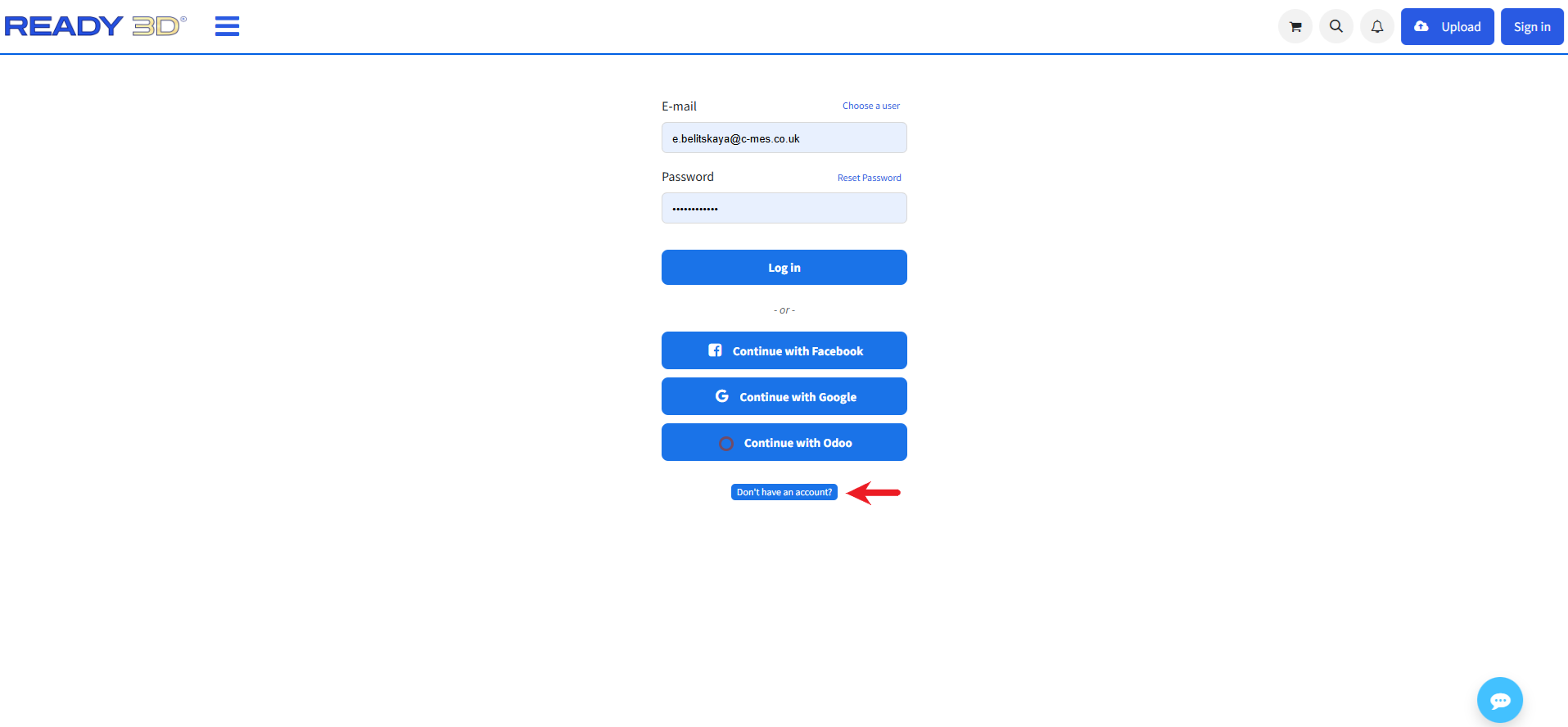
You can also authenticate instantly using your existing third-party accounts. Select one of the following integration options to proceed:
- Continue with Facebook - log in using your Facebook profile.
- Continue with Google - log in using your Google profile.
- Continue with Odoo — log in using your Odoo enterprise credentials.
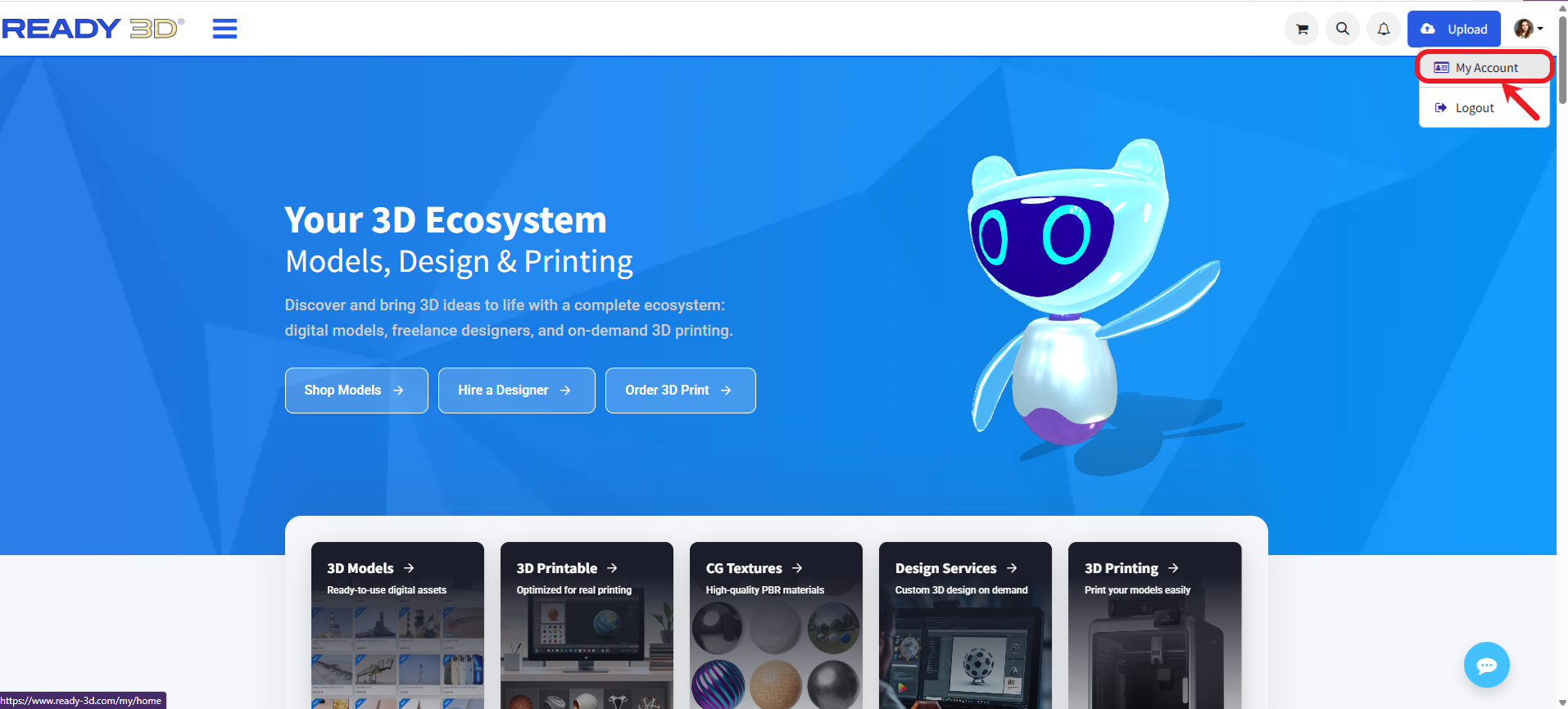
After logging in, go to “Your Shop”.
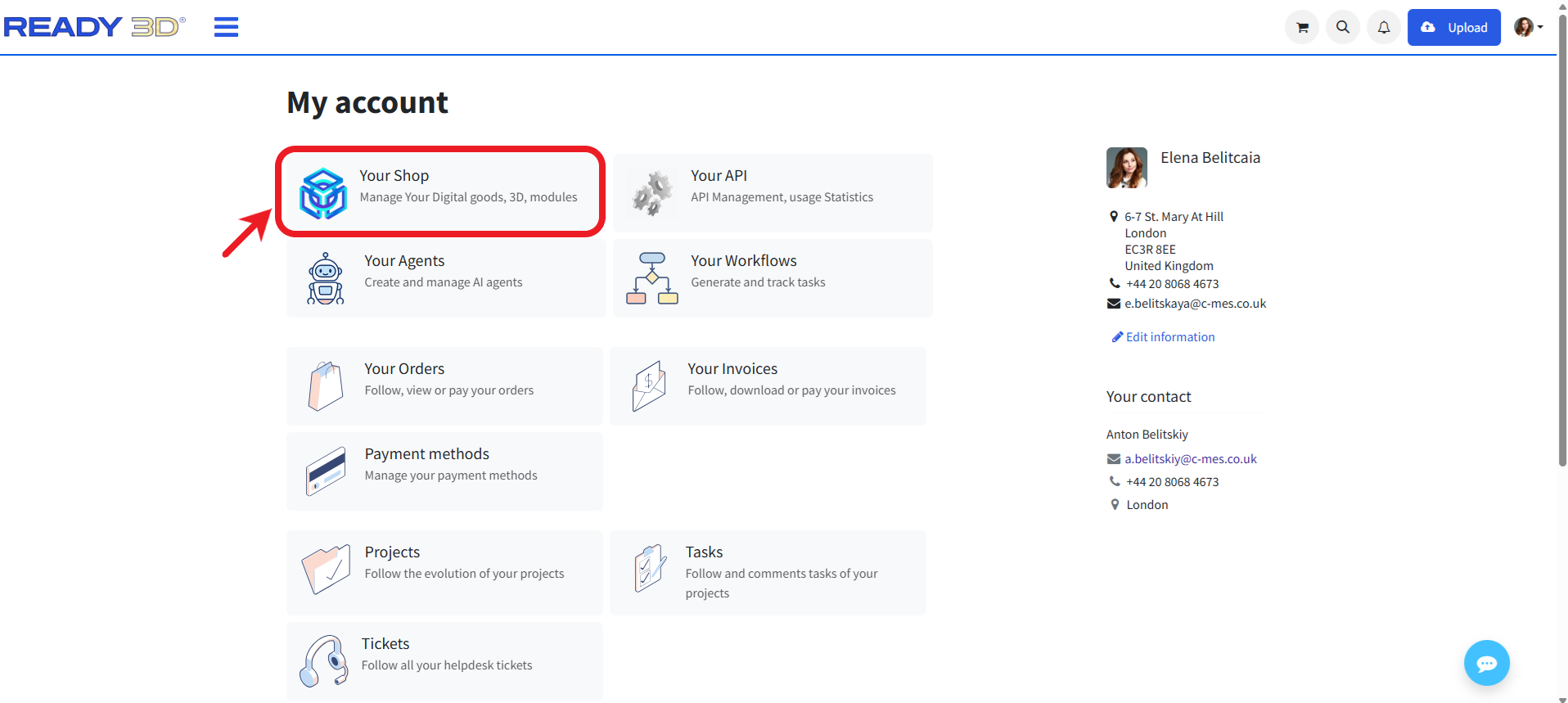
In this section, you can manage your profile and payment settings, including your personal details, profile photo, nickname, transaction currency, and preferred payout method.
To update your information, click the edit option in the opened window.
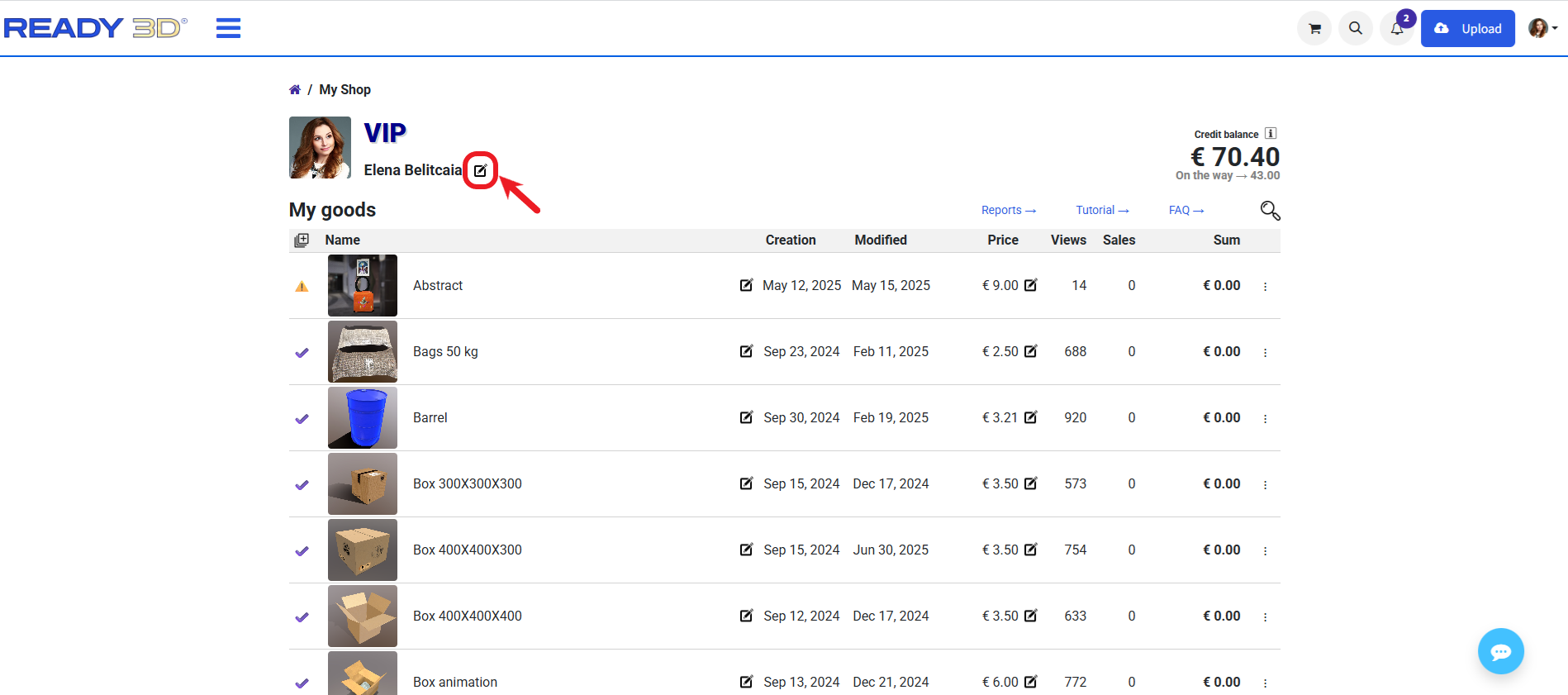
Here you can update your personal data, profile photo, and nickname.
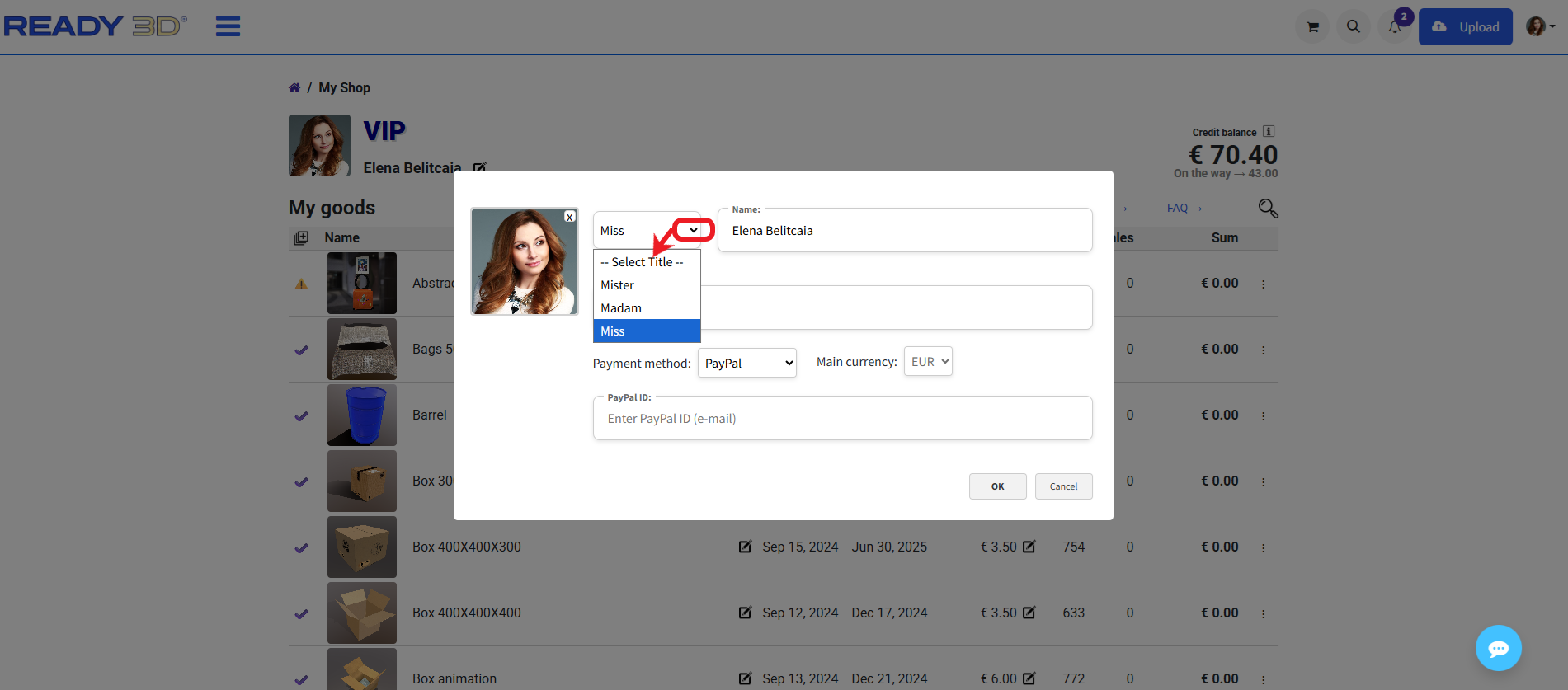
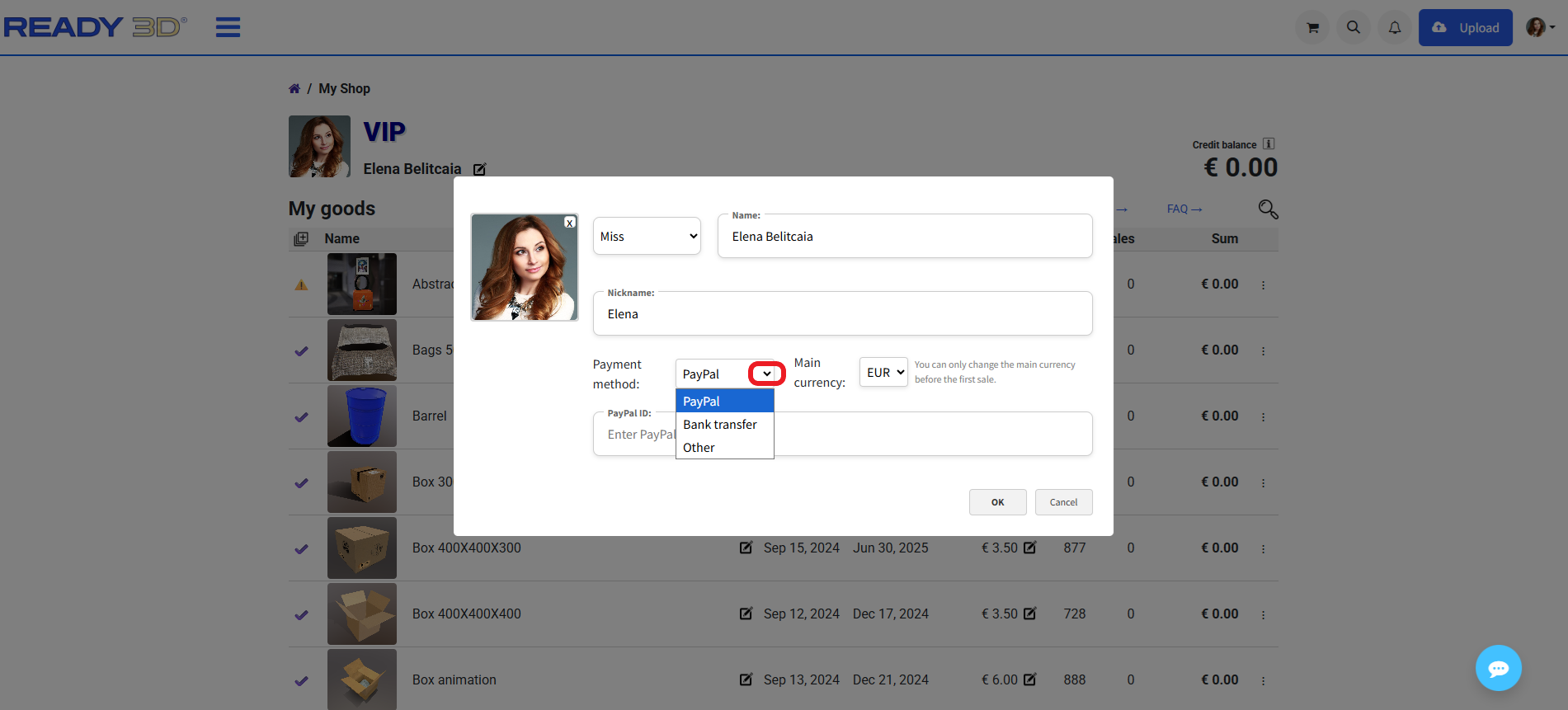
You can also select your preferred payout method.
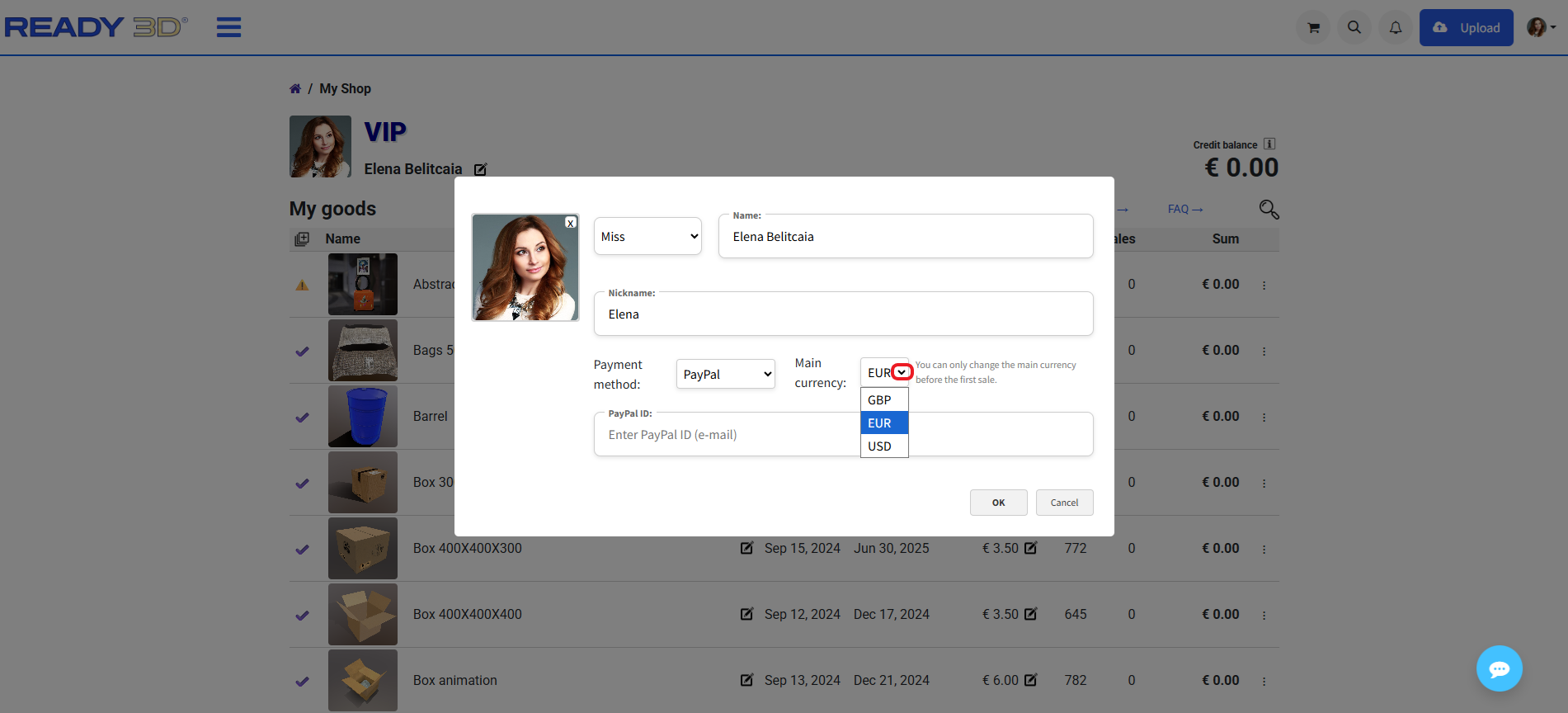
And choose the currency for transactions.
Note:
After your first sale, the payout currency cannot be changed. Please make sure all information is entered correctly before receiving your first payment.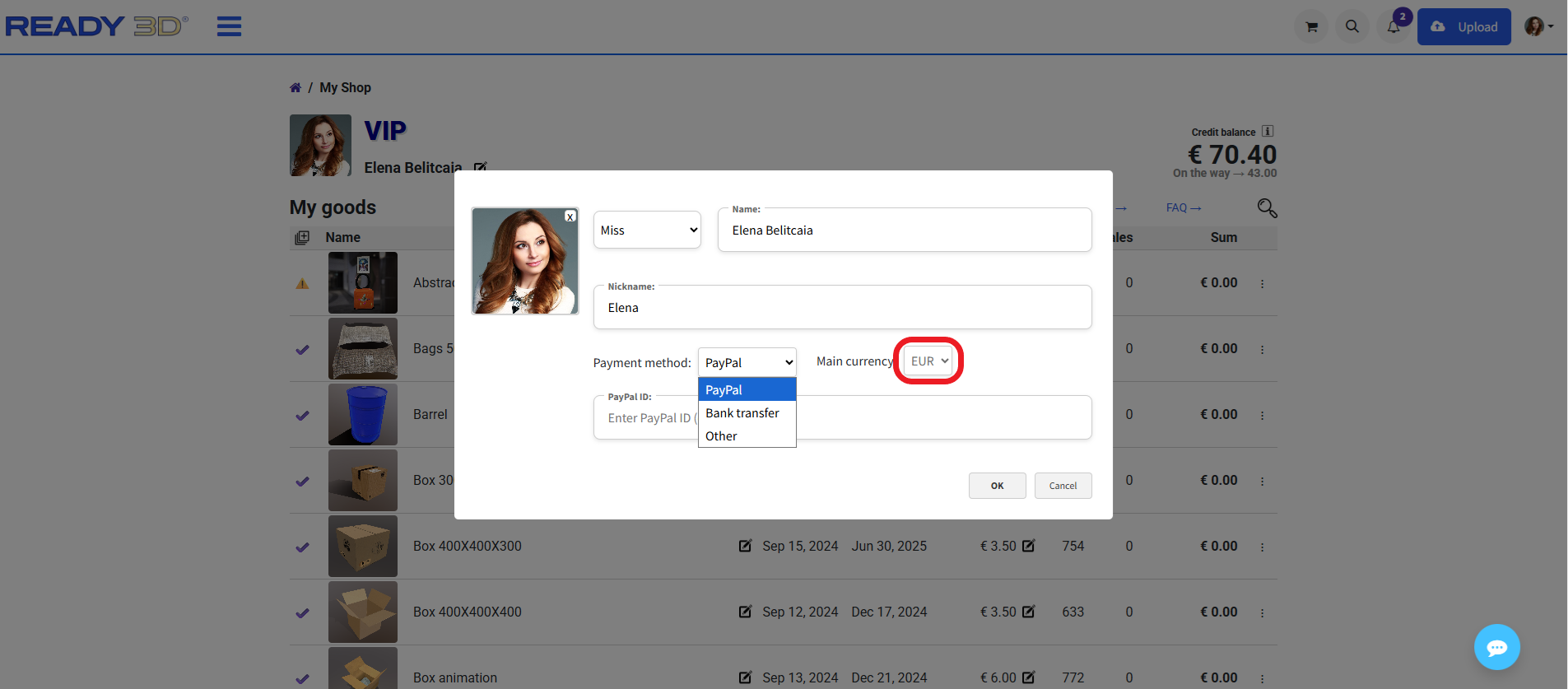
Note:
After your first sale, the payout currency cannot be changed. Please make sure all information is entered correctly before receiving your first payment.
Adding Models
Once your personal information is completed, you can start adding models to your store.
There are two ways to add a model. You can use either of the following options:
Option 1 — From any page of the website:
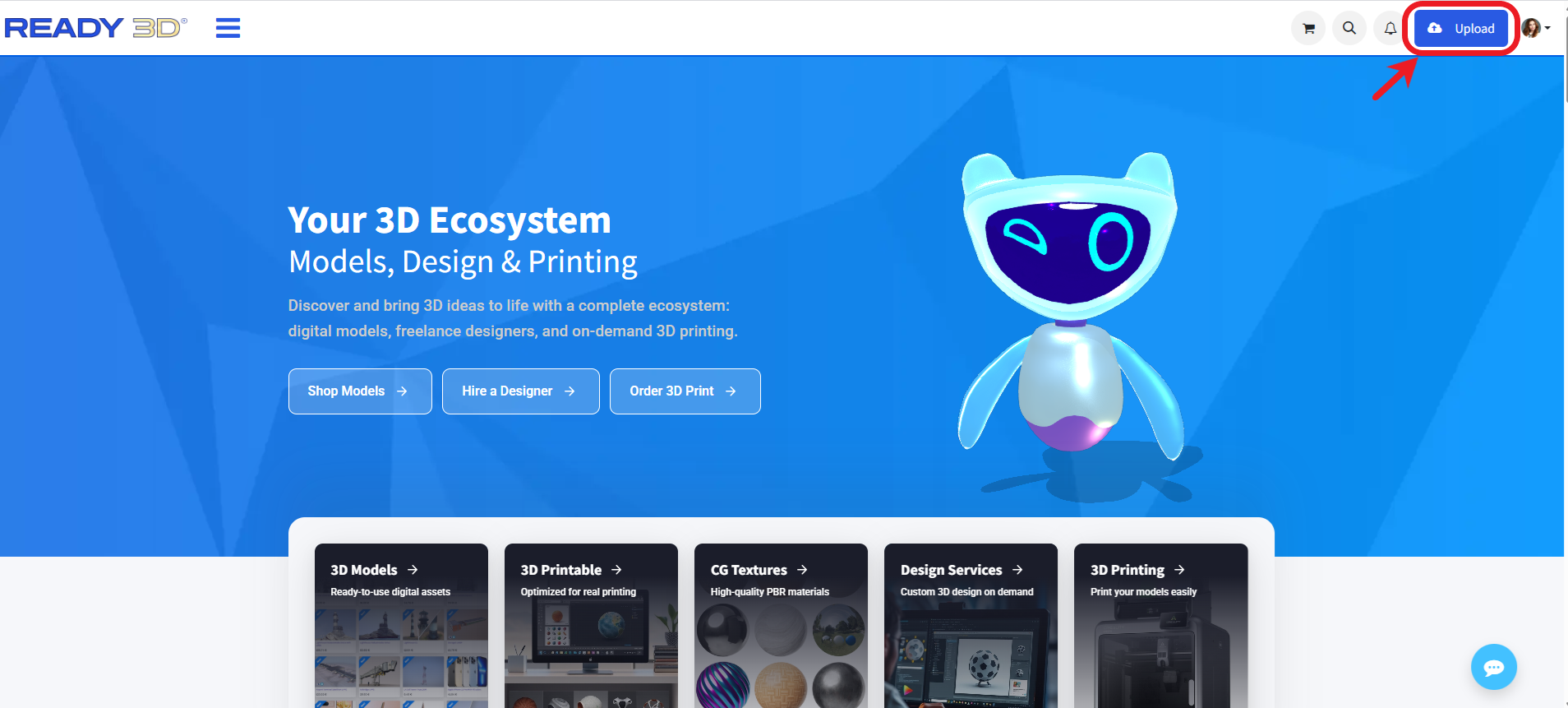
Click the “Upload” button located in the top-right corner of any page on the website.
Option 2 — From your personal account:
Go to the “My Goods” section in your personal account and click the “Add New Good” button located below the “My Goods” title.
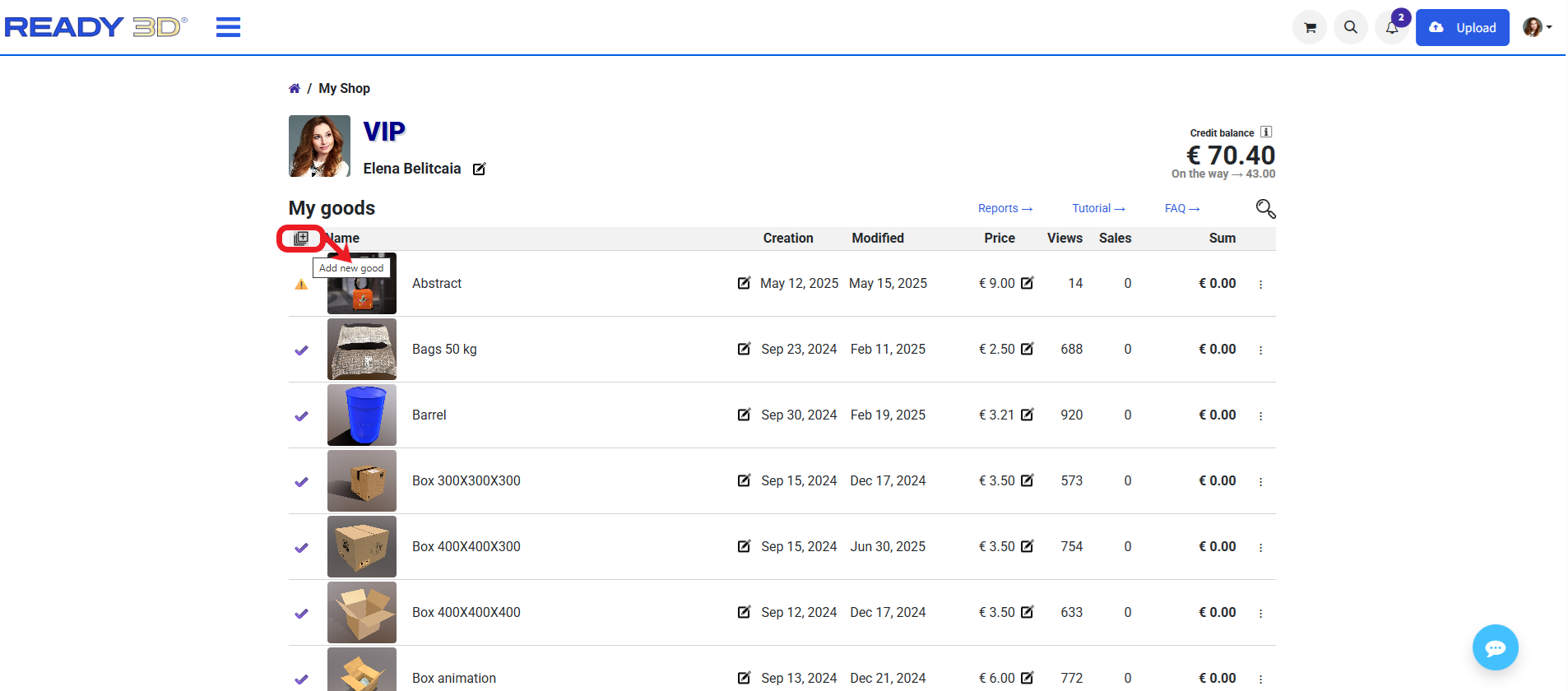
After clicking either “Upload” or “Add New Good”, the model upload page will open, where you can begin adding your model.
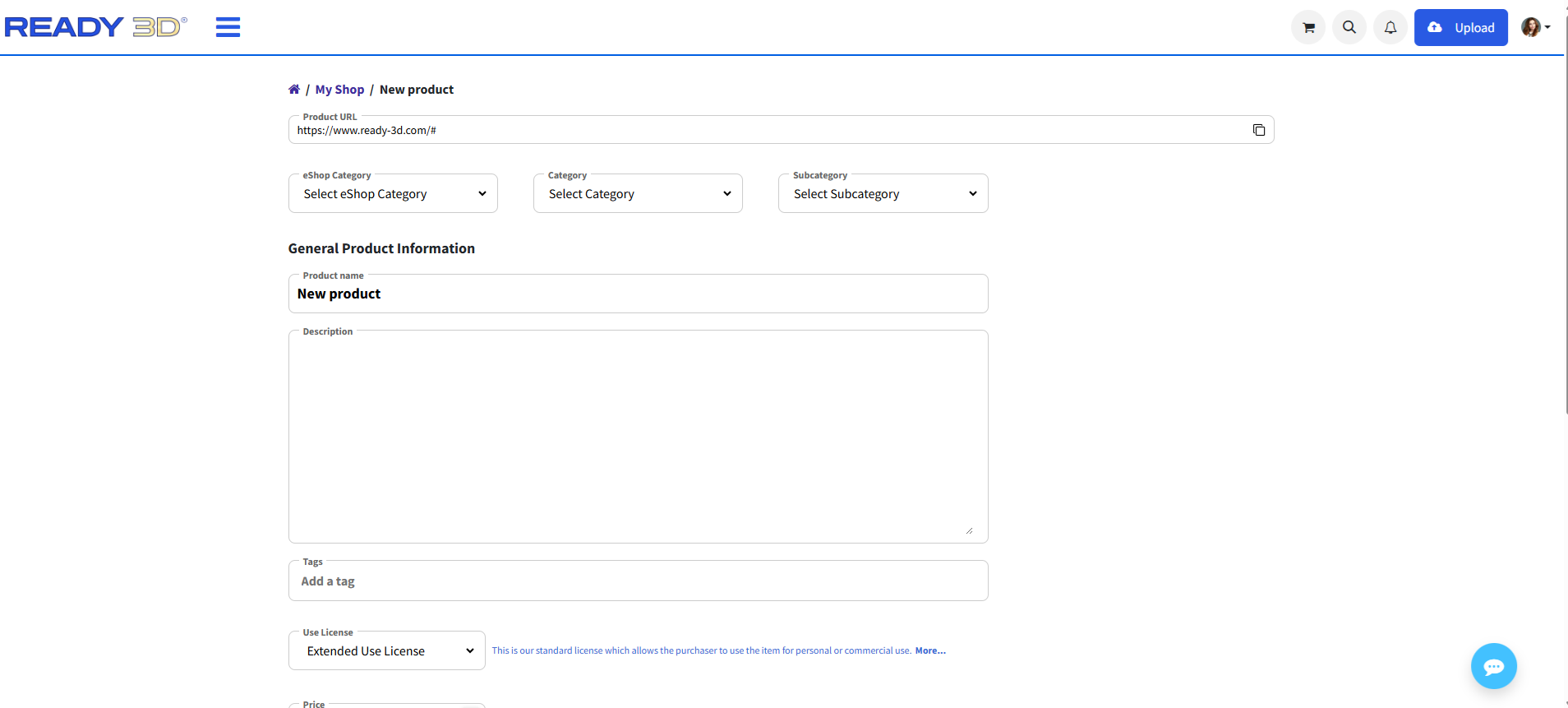
Model Categories
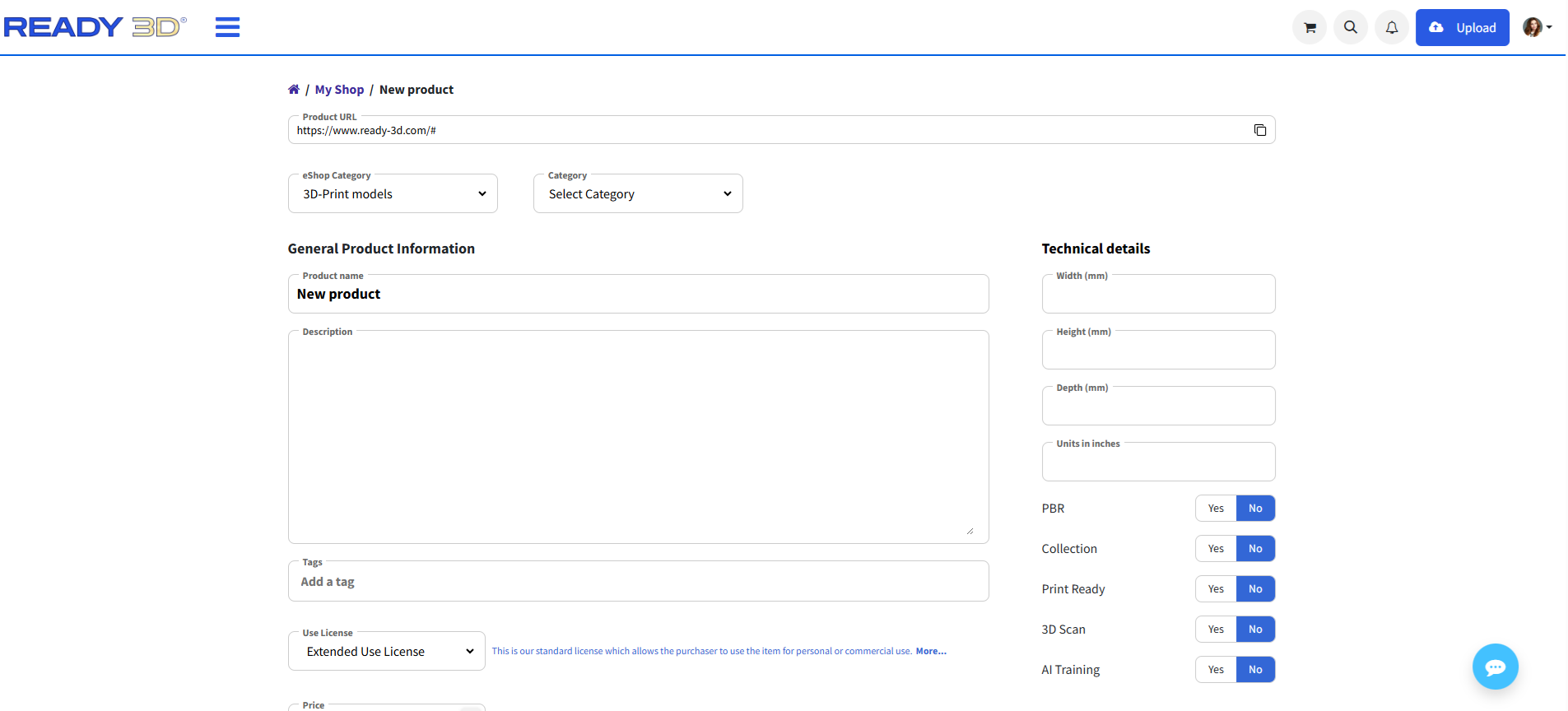
You can add models in different categories. Please note that each category has its own set of attributes and technical details, which may vary depending on the selected category.
Available categories include:
3D Models - for standard 3D assets used in rendering, animation, and games.
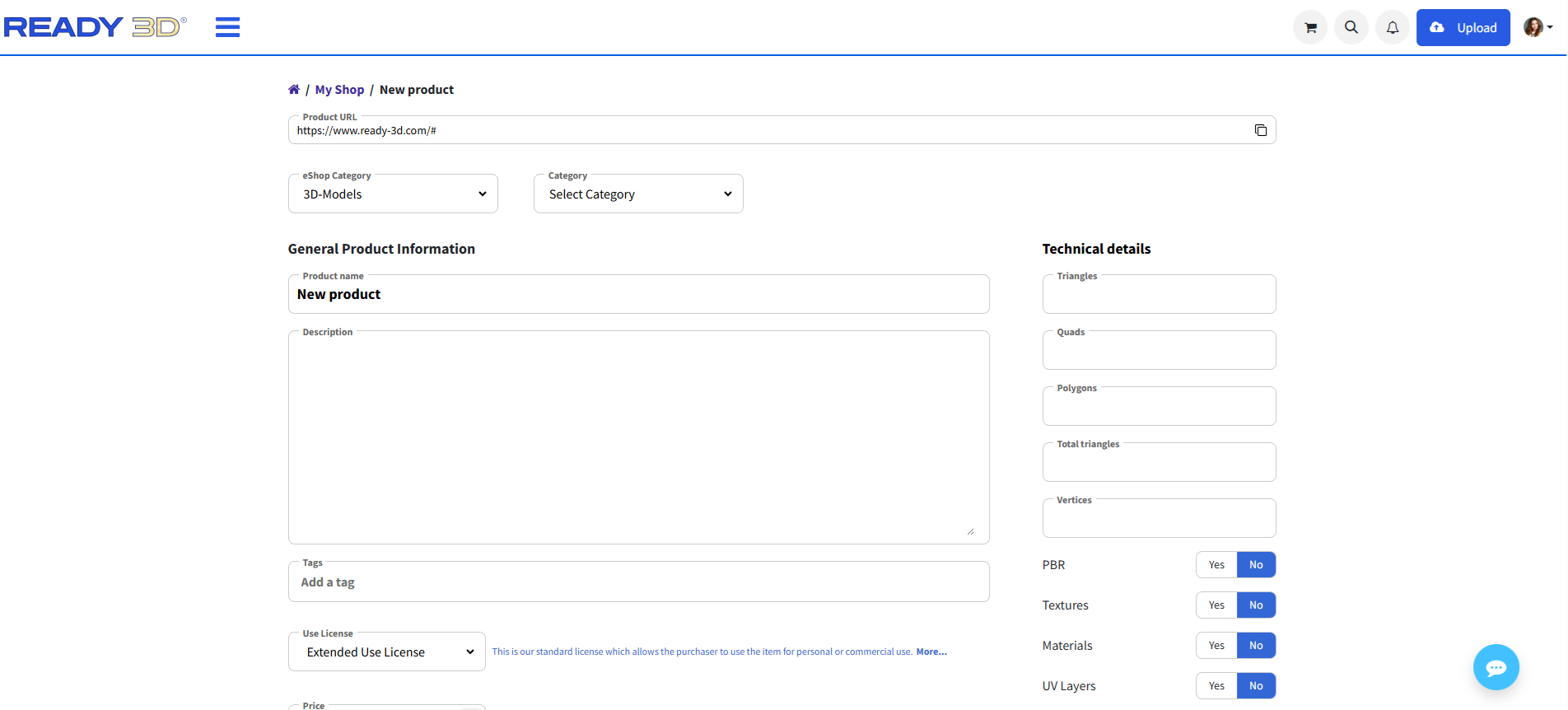
3D Print Models - for models intended for 3D printing, including print-specific settings.
CG Textures -
for texture assets and related graphical materials.
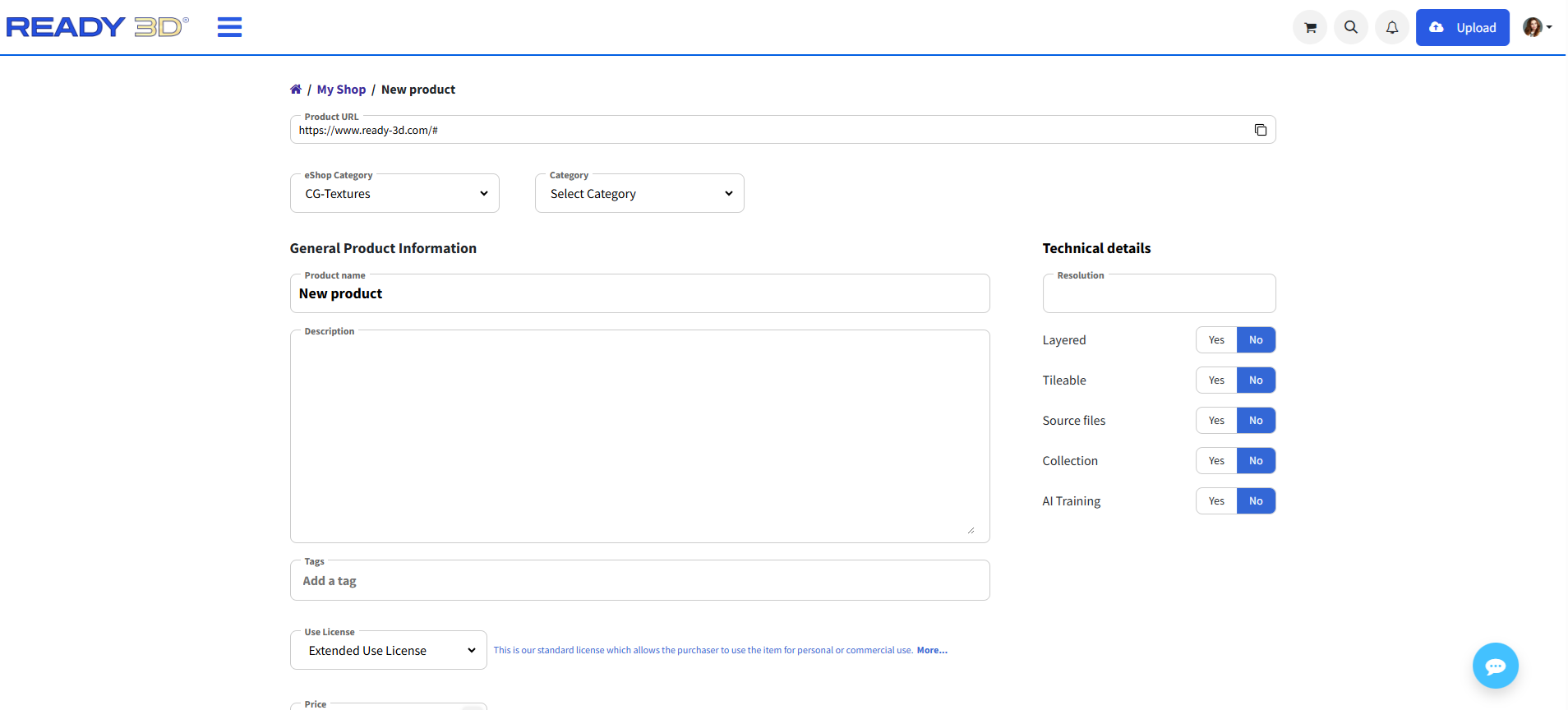
Before adding a model, you need to select the appropriate category step by step:
- First, choose the eShop Category.
- Then, in the next window, select the Category.
- After that, choose the Subcategory.
Each selection step is connected and defines the available attributes and fields for your model.
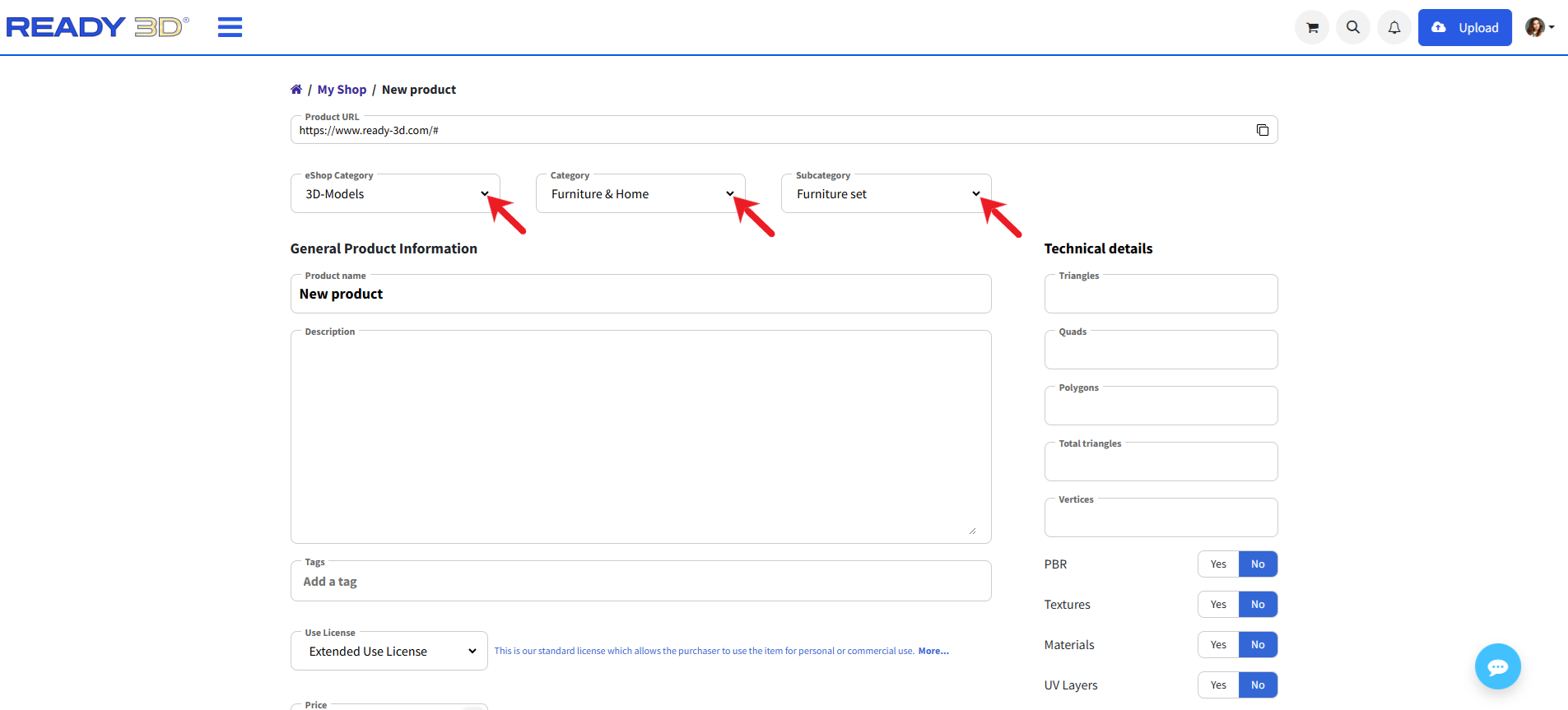
Example: Adding a 3D Model
Select “3D Models”, then specify the required Category and Subcategory.
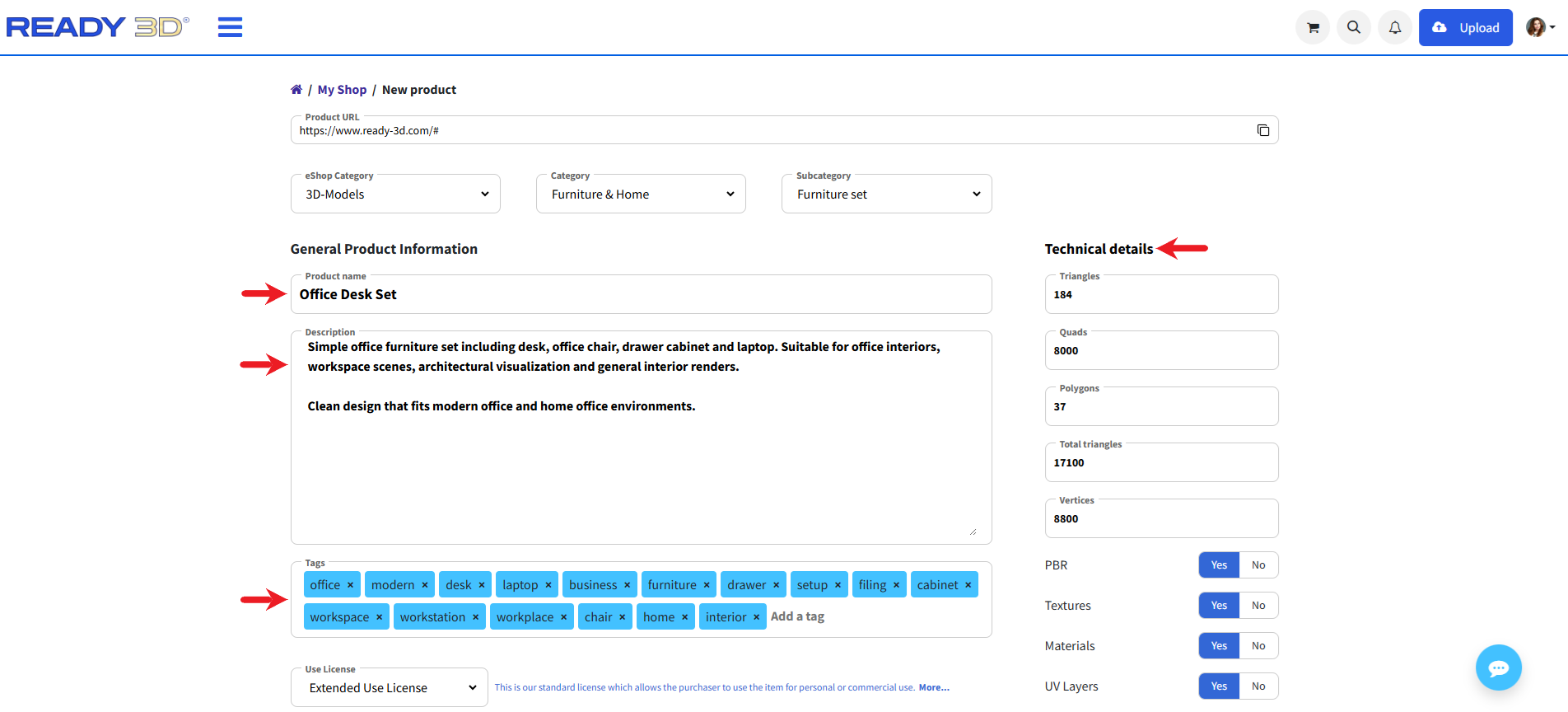
Fill in the Model Information
Enter the required model details:
- Title - enter a clear and descriptive name for your model.
- Description - provide detailed information about the model, including its features, purpose, and usage.
- Tags - add relevant keywords to help users find your model more easily.
- Technical Details - specify the technical characteristics of the model, such as format, polygon count, textures, and other specifications.
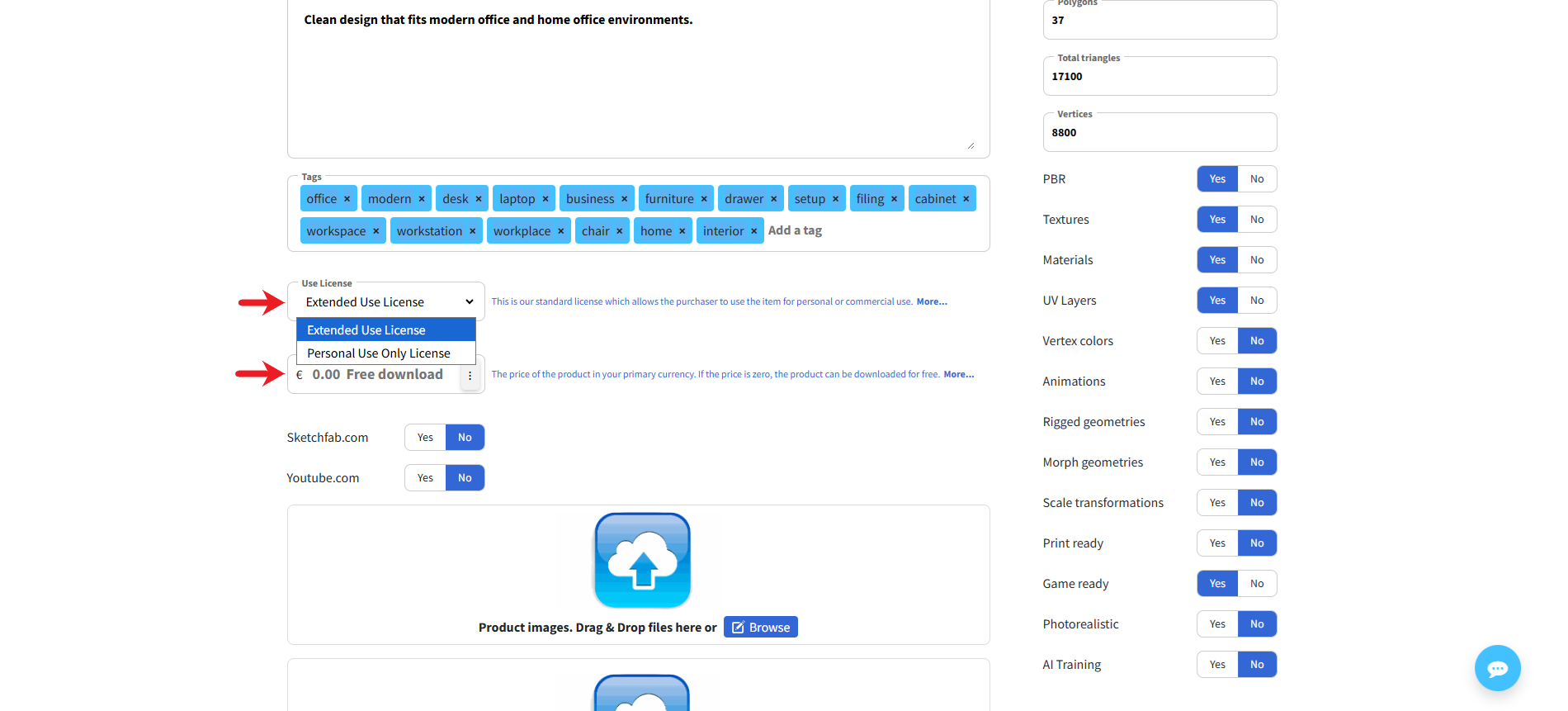
Select License Type and Set the Price
Choose the appropriate license type and specify the cost of your model.
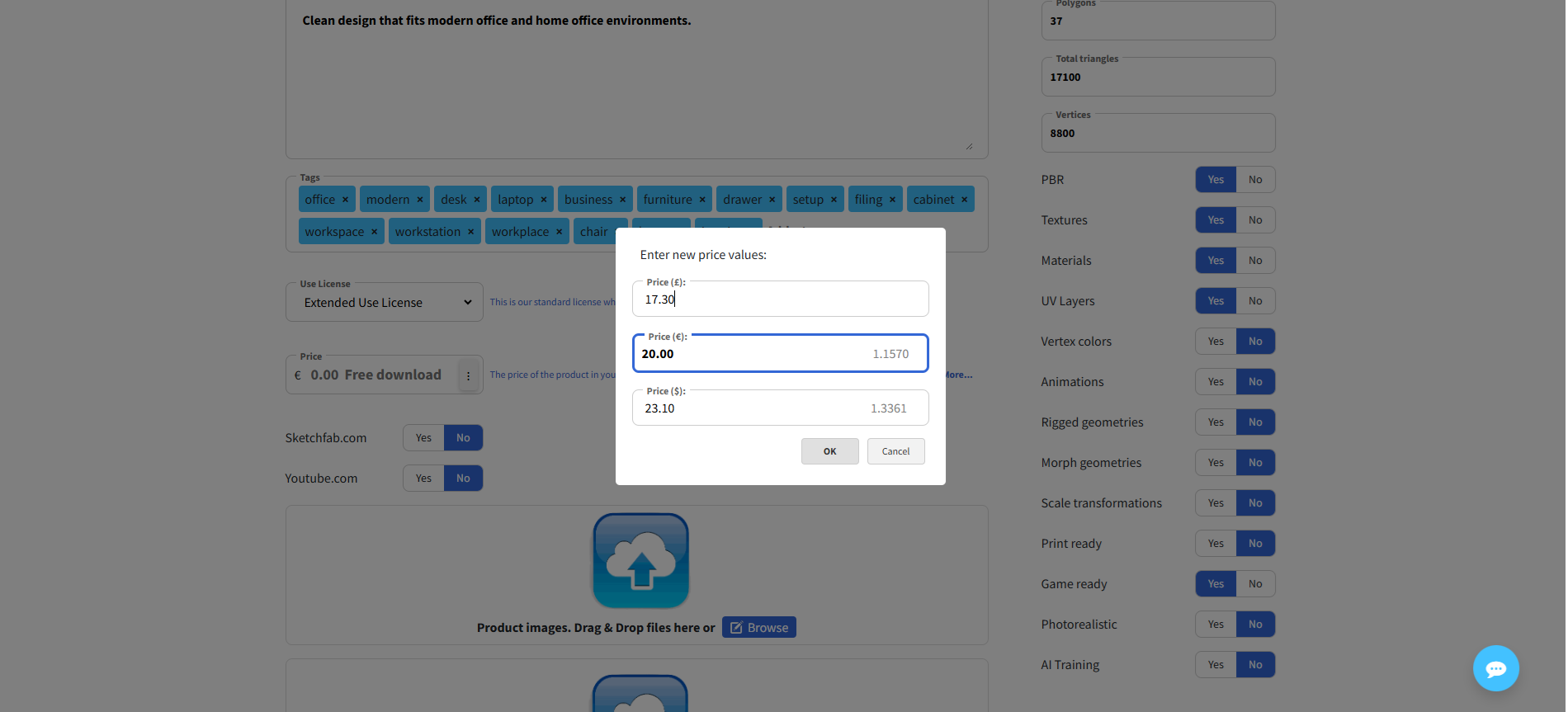
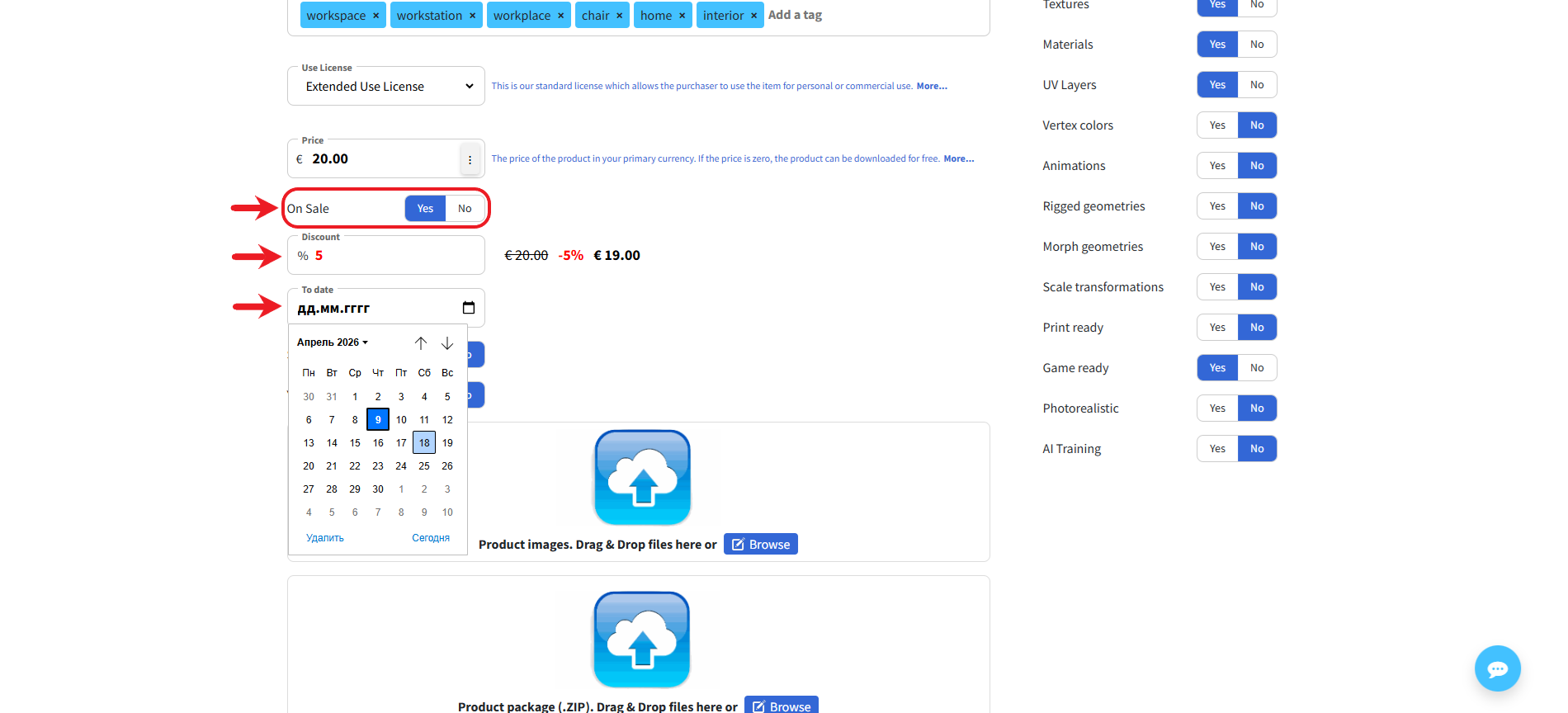
Discount Settings (Optional)
After entering the price, you can optionally add a discount to your model.
To do this, enable the “On Sale” option by selecting “Yes”. Additional fields will appear where you can specify the discount percentage and, if needed, the discount period.
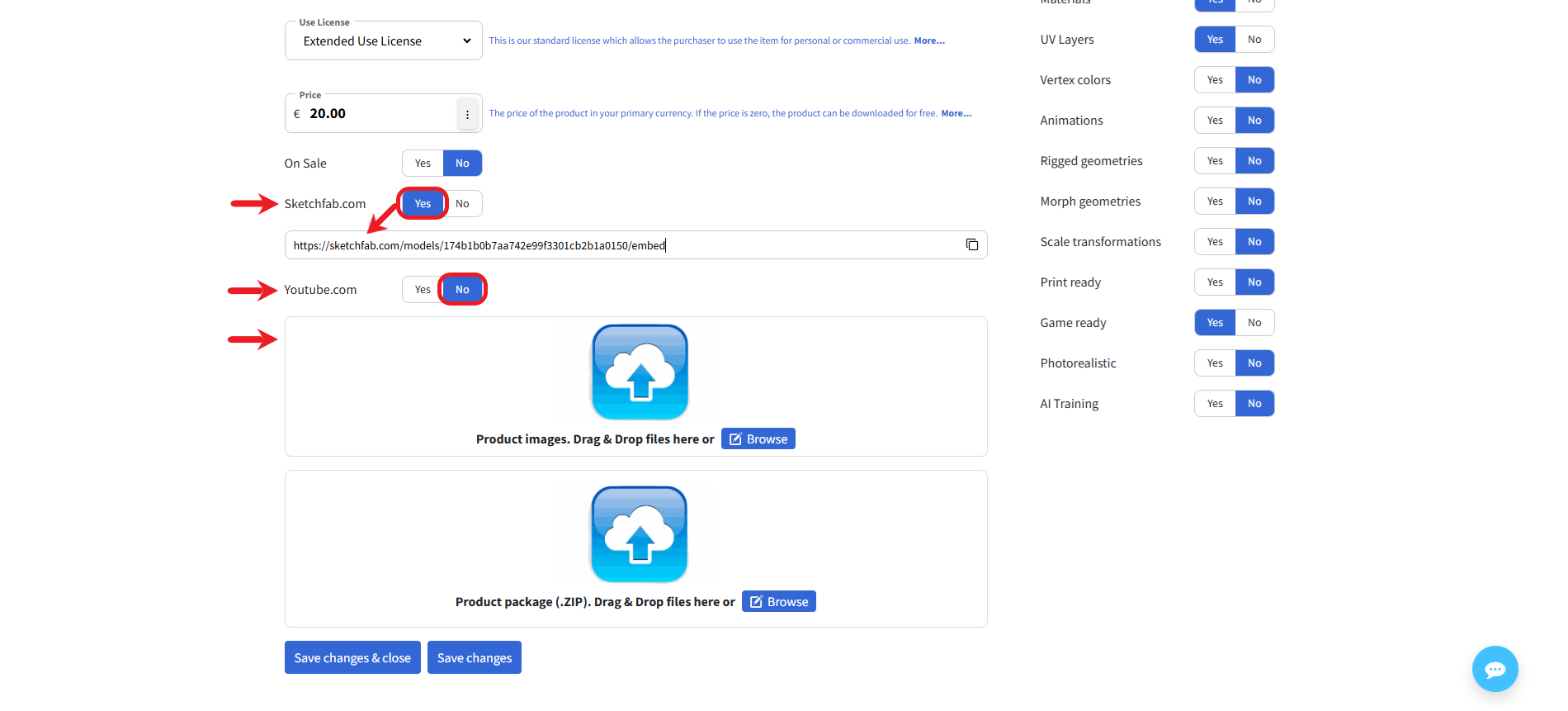
External Links and Preview Images
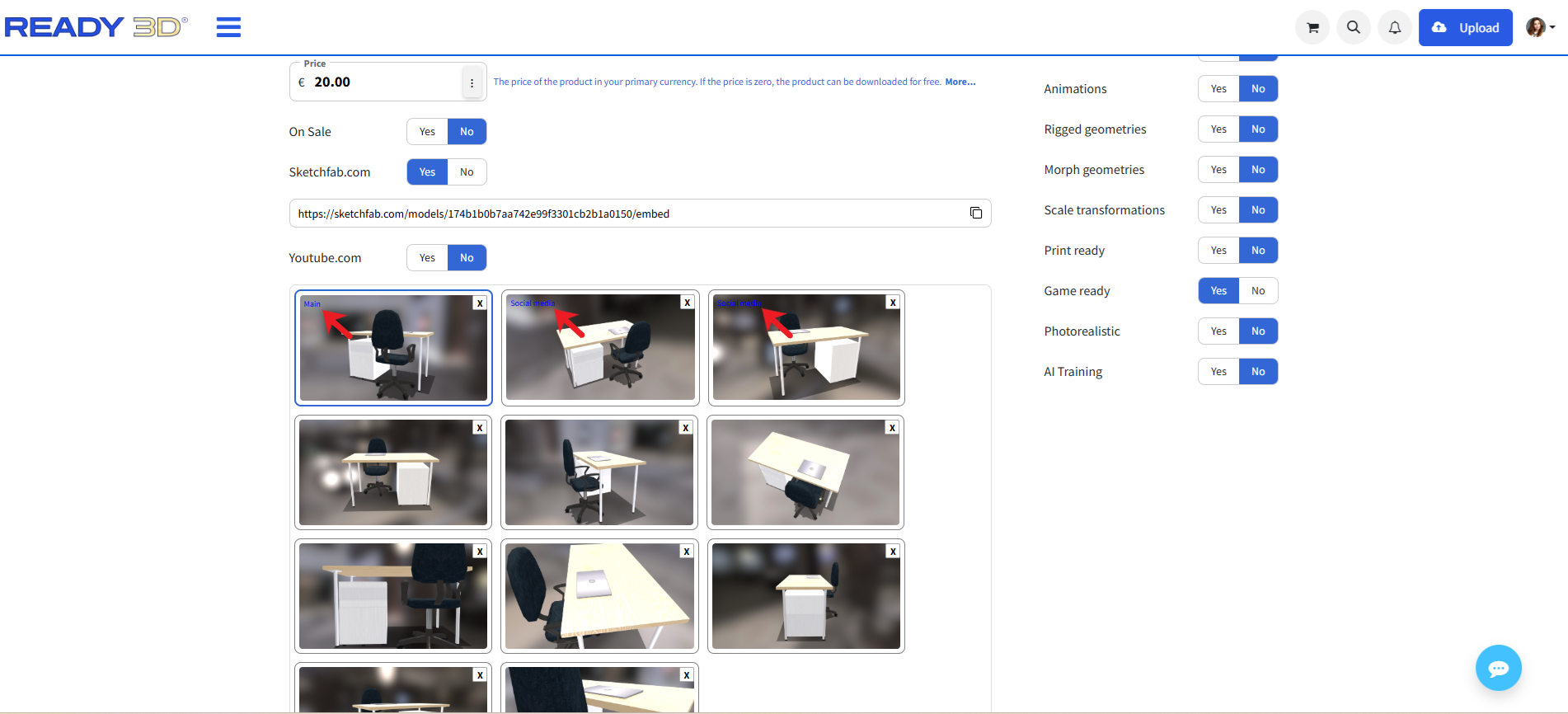
If your model is already published on Sketchfab or YouTube, click “YES” and paste the corresponding links.
Add preview images of your model, preferably in JPEG format.
Uploading Model Files
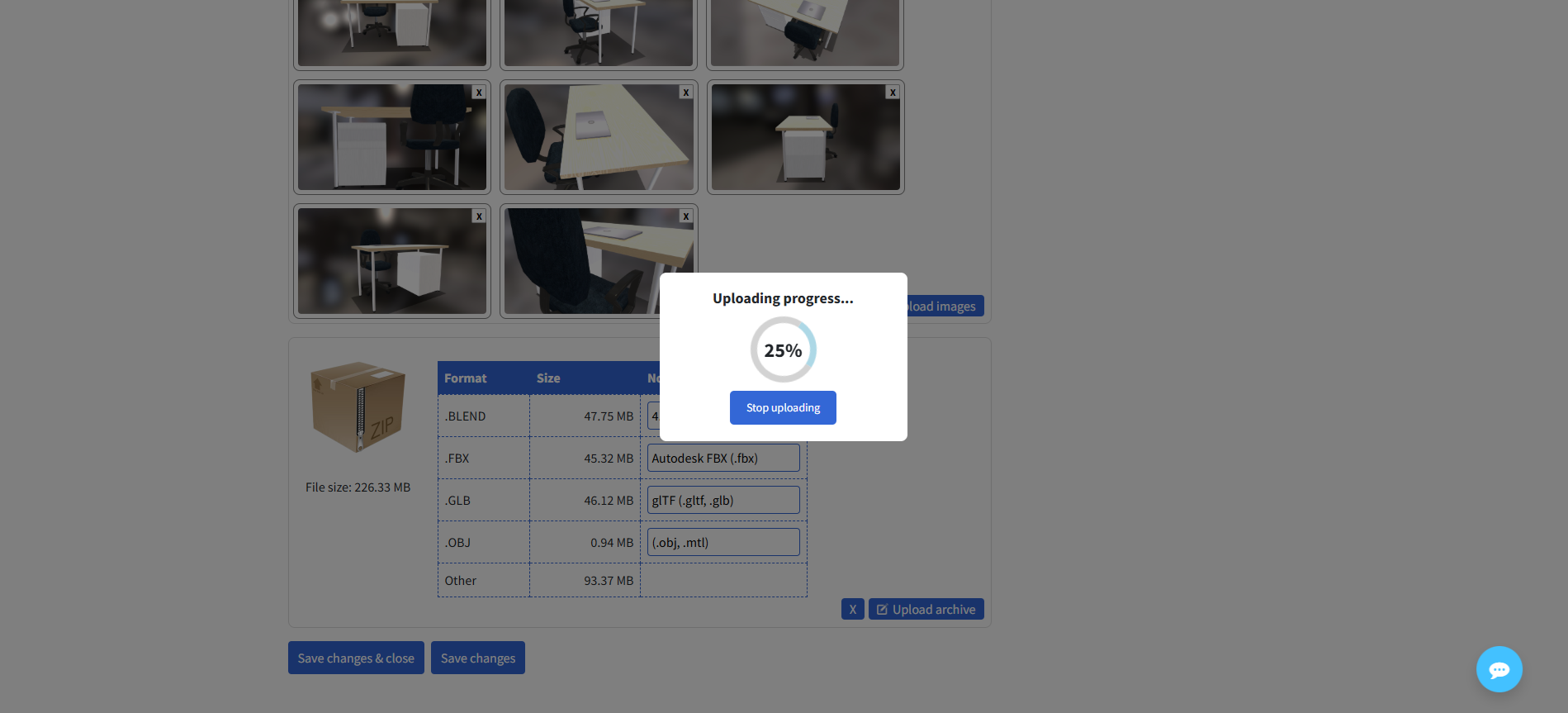
Upload the archive containing your model files.
If your model includes multiple formats (such as FBX, OBJ, Blender, 3DS Max, etc.), combine all files, including textures, into a single archive and compress it into a ZIP file before uploading. You can add comments about the uploaded files in the archive description field.
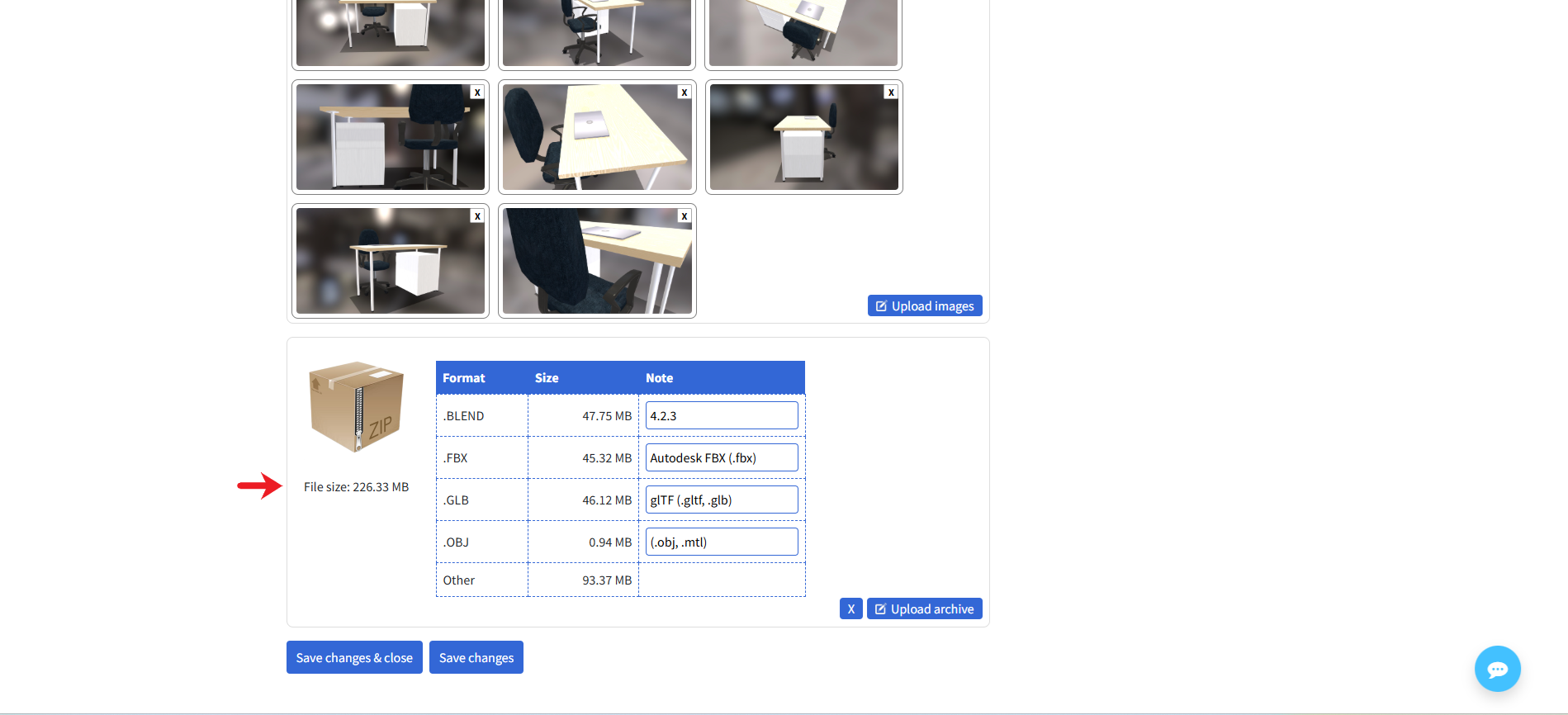
Saving the Model
You can save your progress at any time to prevent data loss while filling out the model information.
- - Click “Save Changes” to save your progress and continue editing the model.
- - Click “Save and Close” to save the model and return to your models list in your personal account.
After saving, the model will appear in your personal account under “My Goods”.
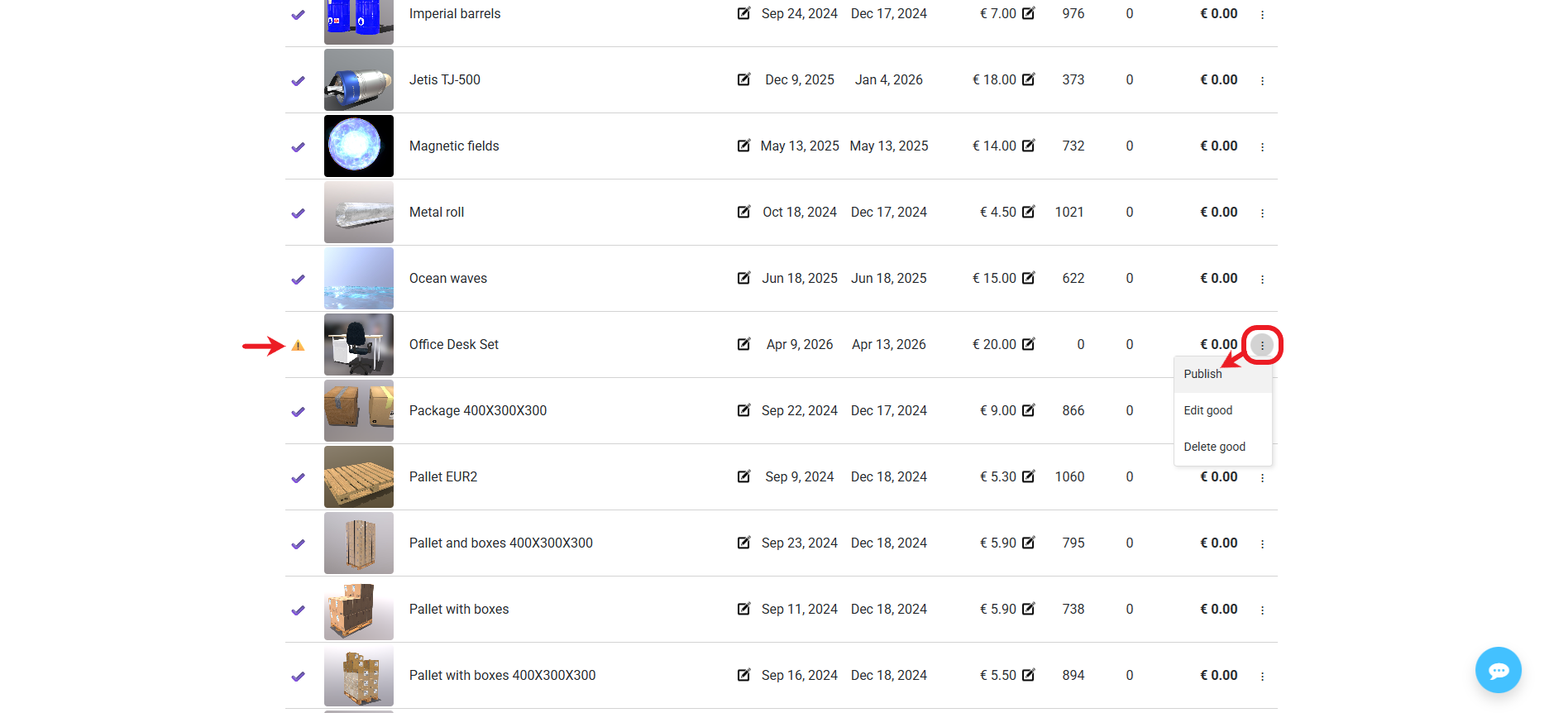
Publishing the Model
Your model is saved, but to make it available to buyers, you need to publish it.
Click the three dots next to the model and select “Publish”.
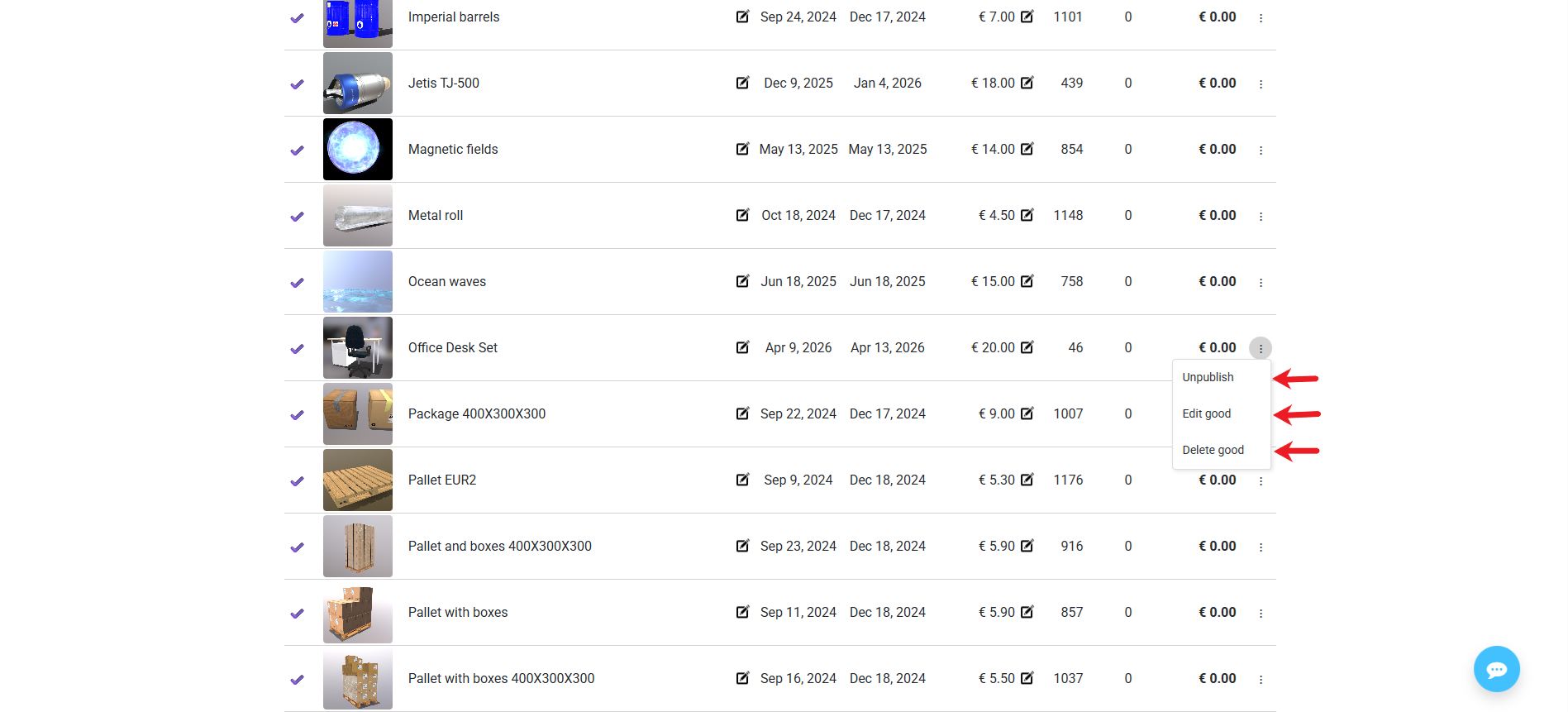
After publishing, additional options will become available. You can:
- Unpublish the model - removes the model from public listing.
- Edit the model - opens the editor to update your asset.
- Delete the model - removes the model from the shop.
After Publication
After publishing, your model appears in the store.
Congratulations!
You have successfully uploaded and published your model. We hope your work inspires others.
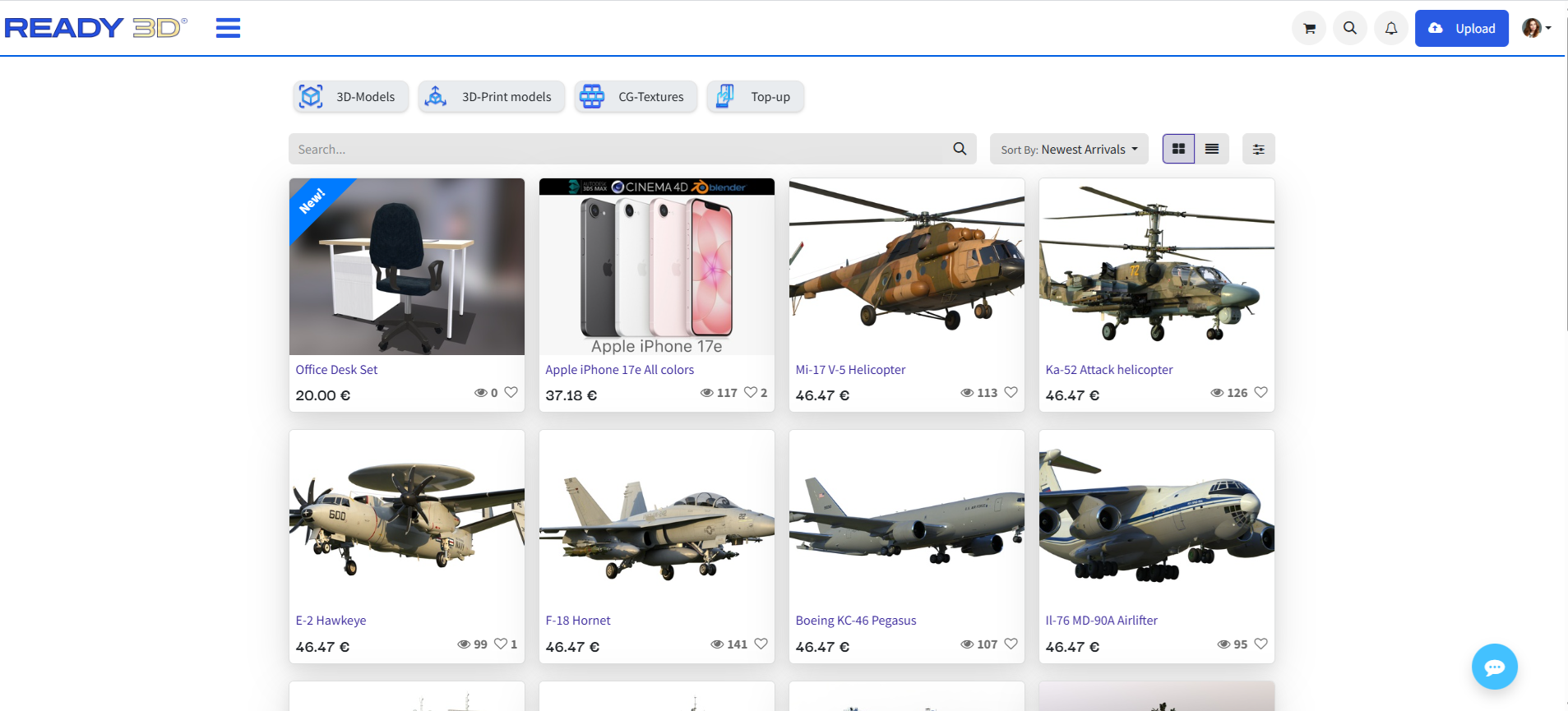
This is how your model will look in our online store after publication:
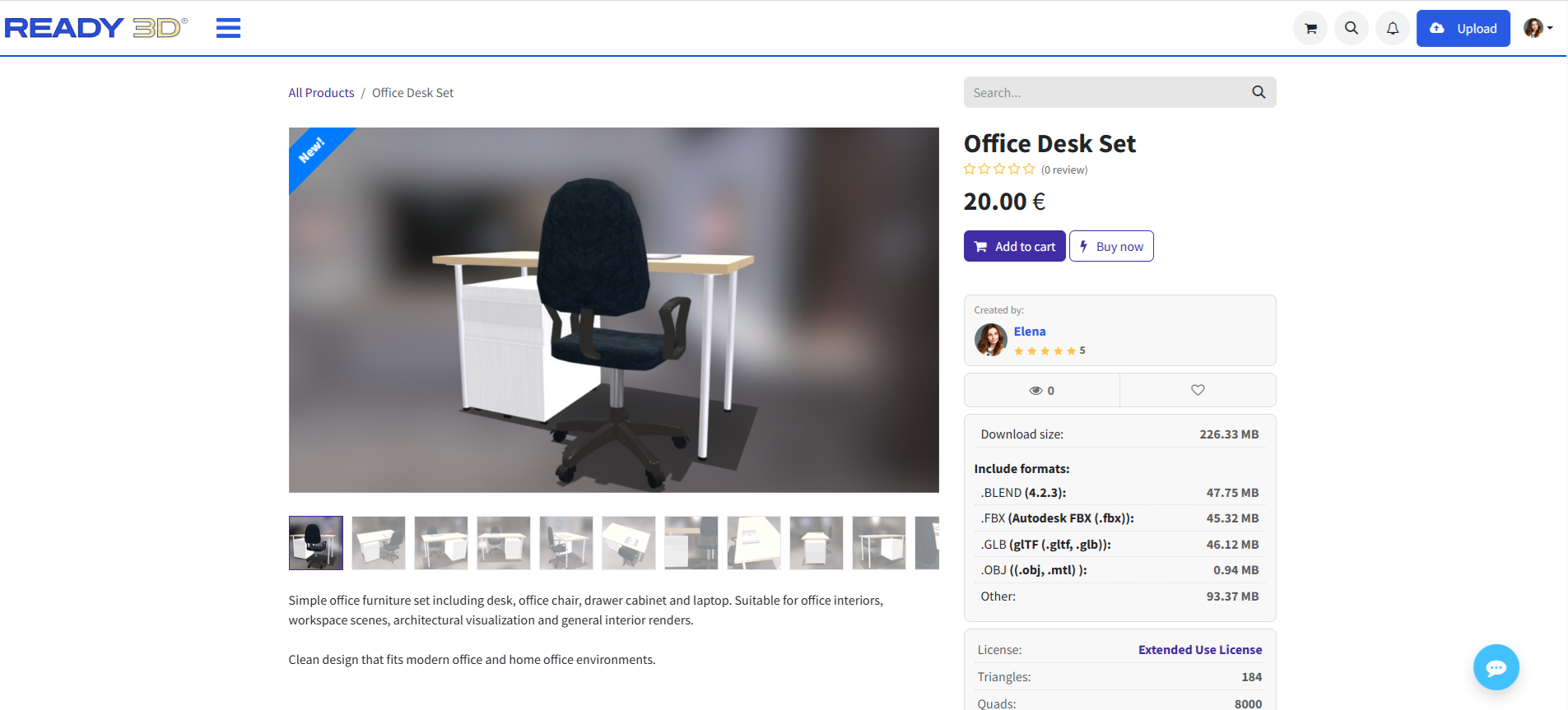
Main Information - Preview Image, Title, Description, Price, Available Formats, File Size, Author, and License Type.
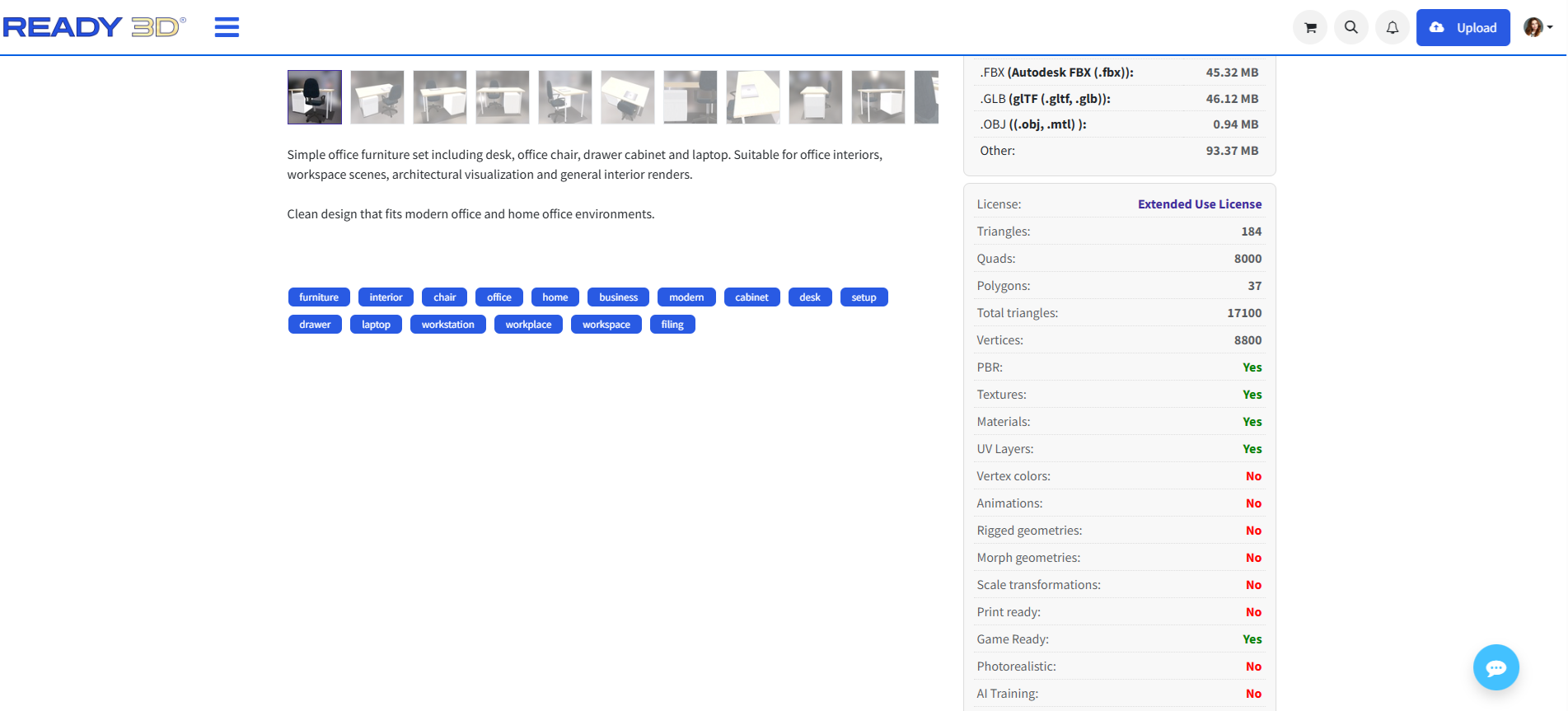
Additional Details - Tags and Technical Details.
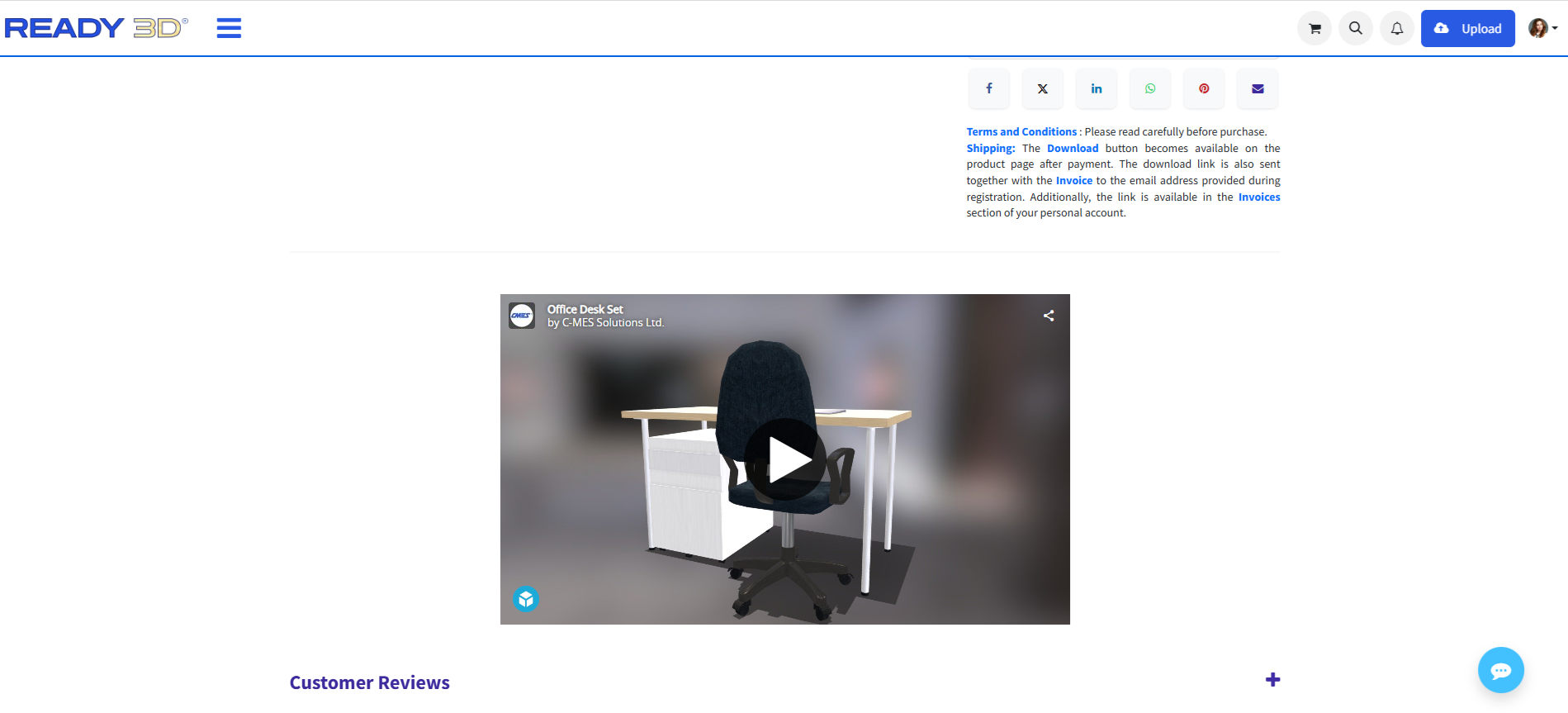
Viewer and Sharing - 3D Model Viewer and Social Sharing Options.
Community Interaction
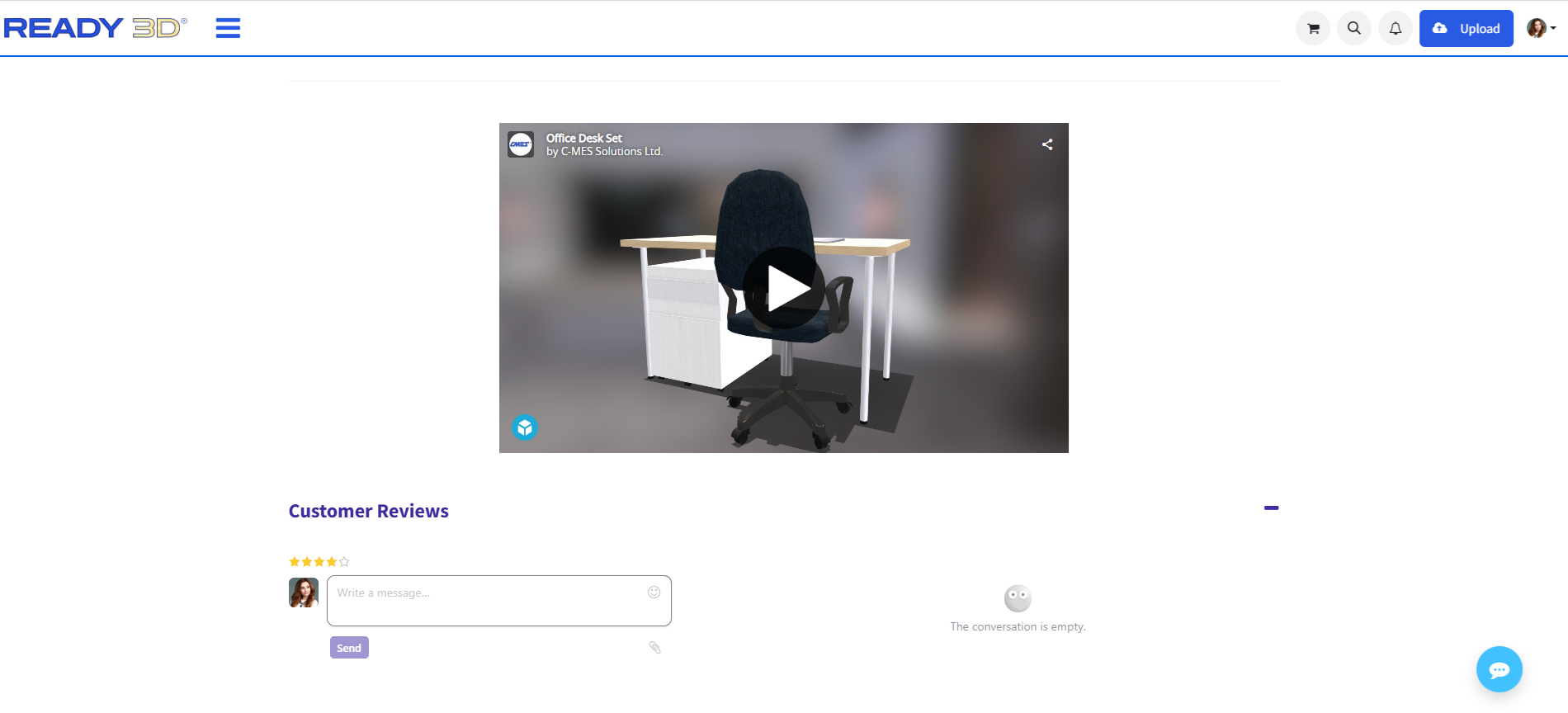
Users can interact with your model by leaving comments and giving ratings via the star system.
You can also engage with the community by commenting on and rating other creators' models.
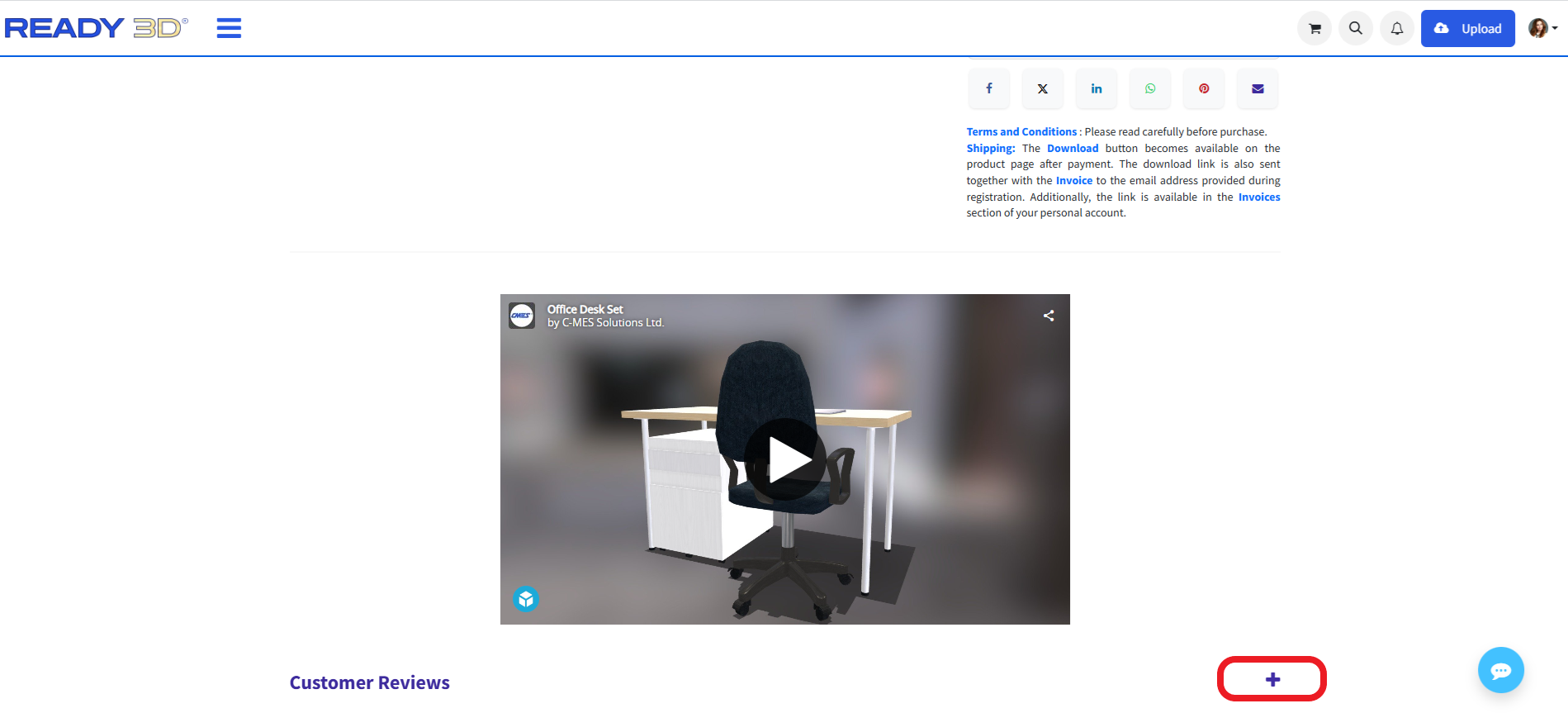
To add a review, click the “+” button in the Customer Reviews section located at the bottom-right of the model page. The review form will open, allowing you to submit a comment and rating.
Earnings Information
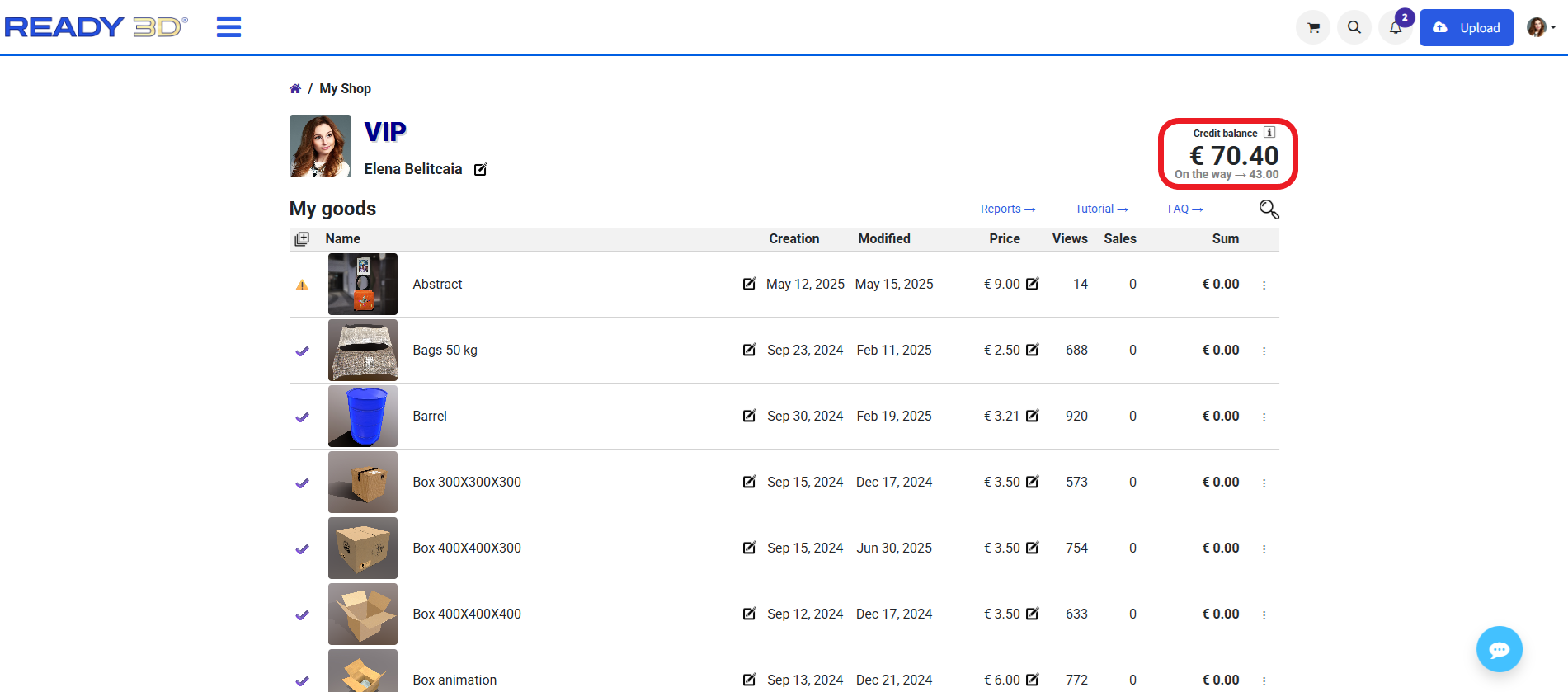
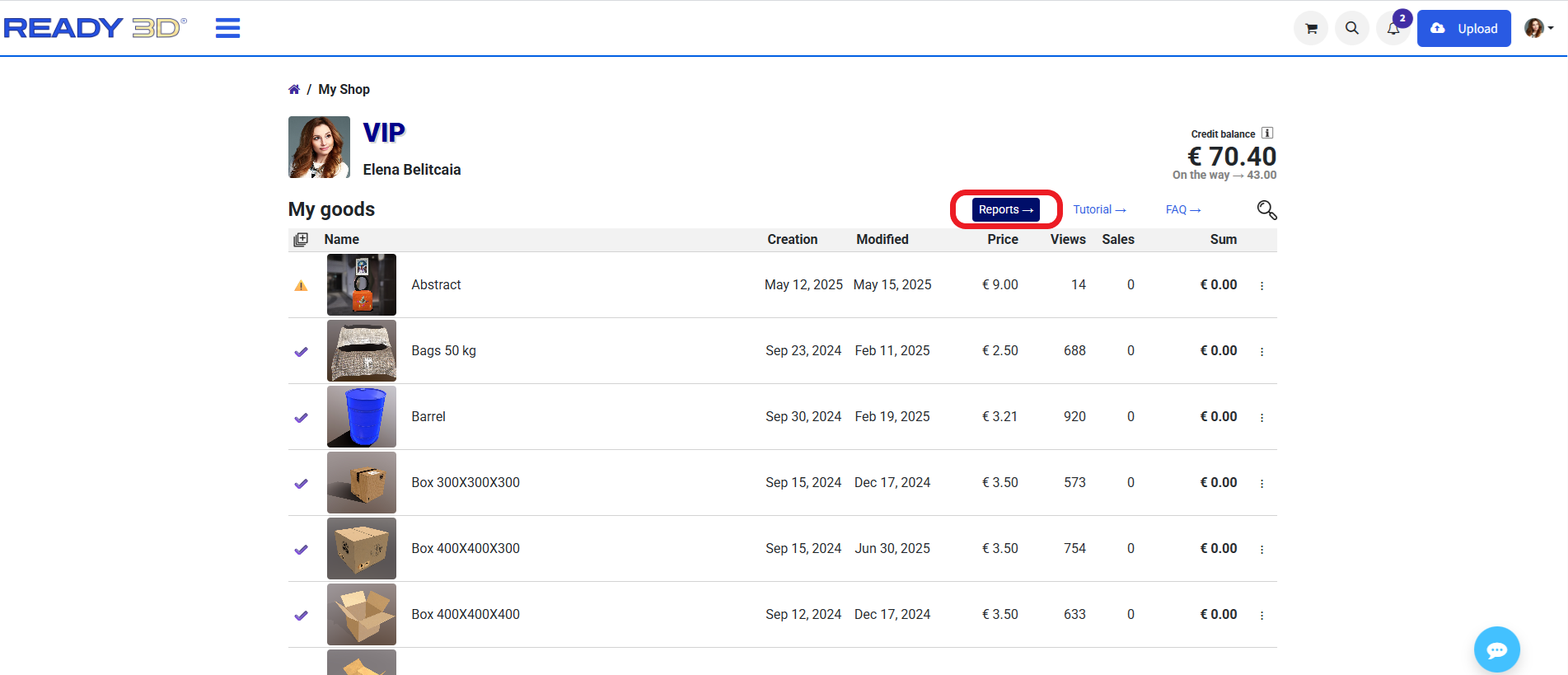
On the models list page in your personal account, the Credit Balance dashboard displays your total sales volume accumulated during the current calendar month.
At the beginning of each month, an invoice for the previous month's sales is automatically generated and sent to your registered email address. Once the invoice is generated, your payout amount appears next to the “On the Way” status, indicating that your royalty payment is being processed.
Search Models
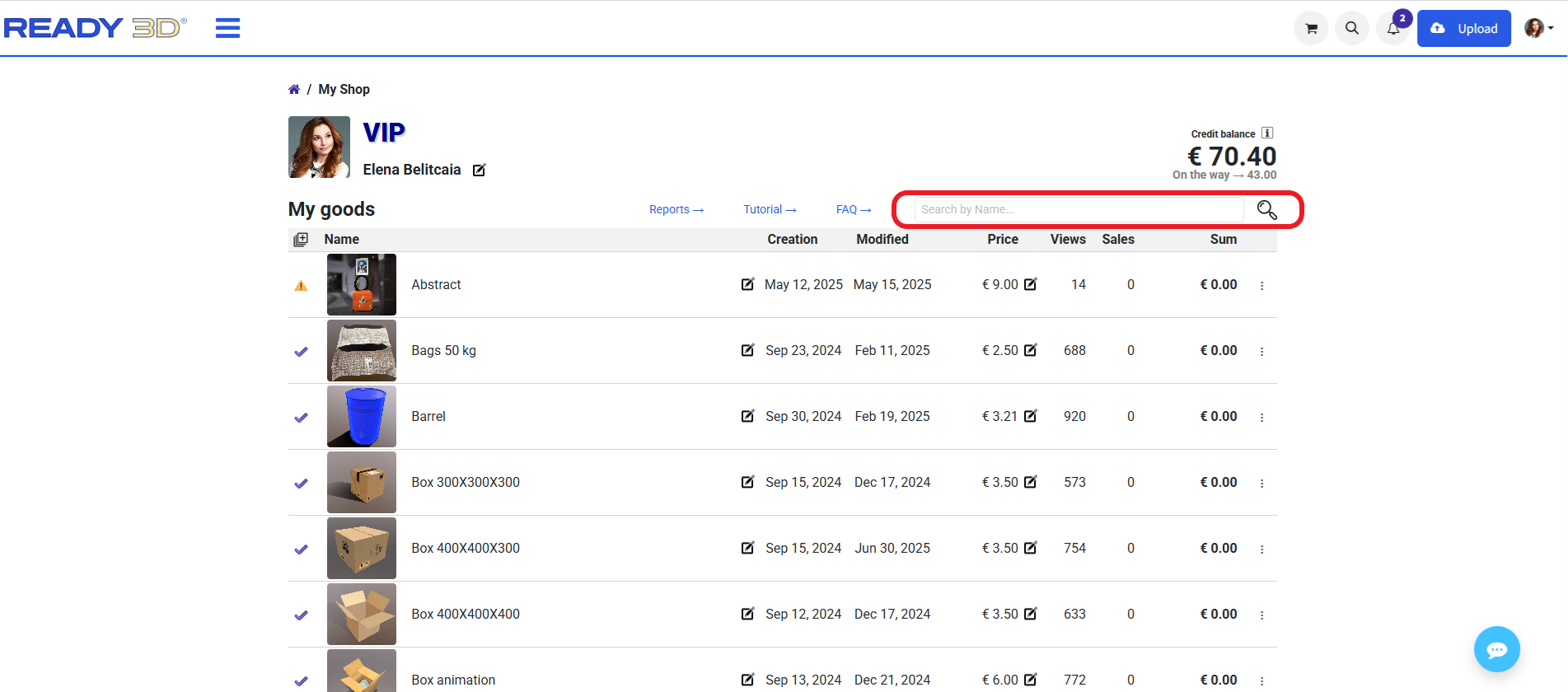
To quickly locate a specific asset within your portfolio, click the search icon on the models list page. A search overlay will open where you can enter the title or keywords of the required model.
Sales Reports
To view detailed information about your sales and payouts, open the “Reports” page by clicking the “Reports” button on the models list page.
Sales Analytics
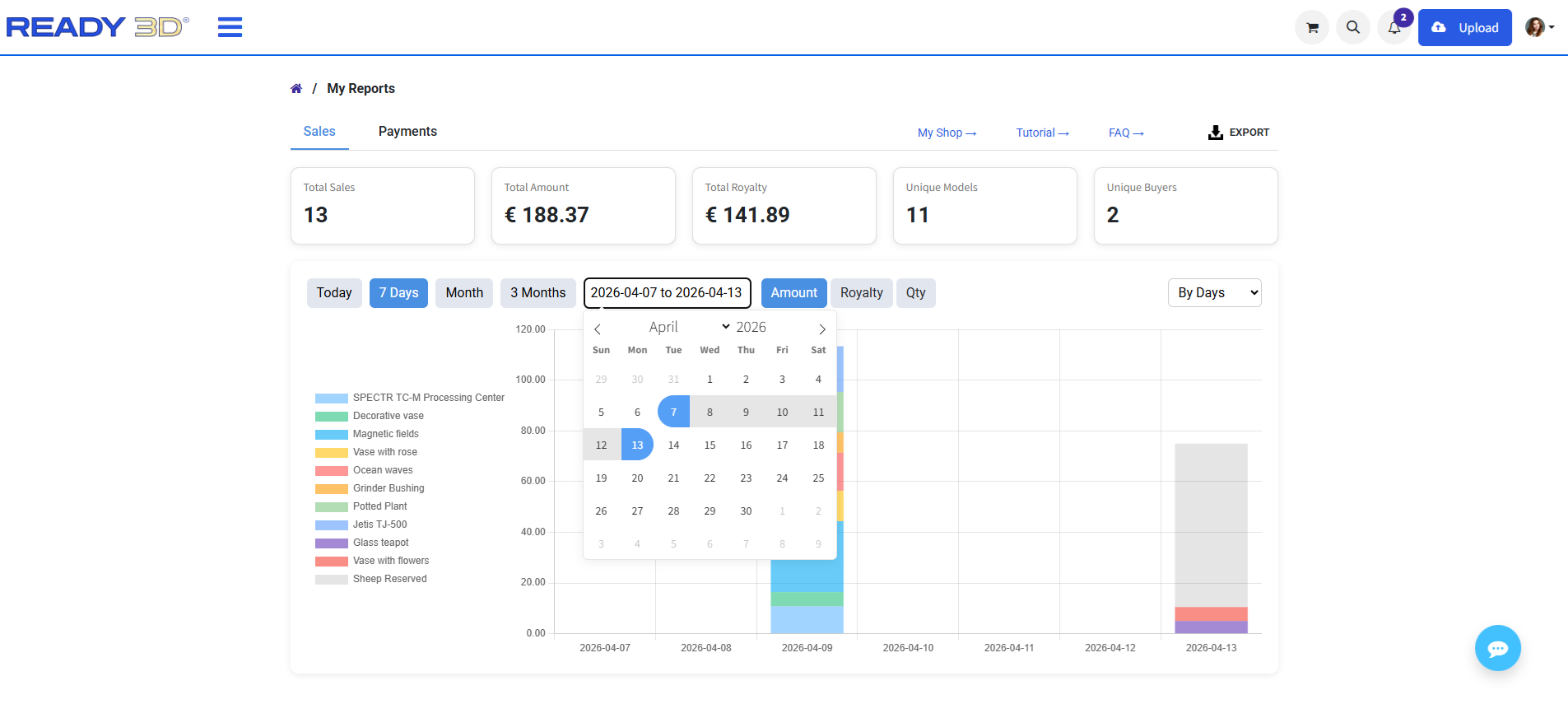
When you open the reports, the dashboard immediately displays your key performance metrics for the selected period:
- Total Sales — total number of models sold.
- Total Amount — gross sales revenue.
- Total Royalty — your net earnings after marketplace commission.
- Unique Models — number of distinct models that were purchased.
- Unique Buyers — number of individual customers.
To analyze your performance deeper, filter the data by timeframe using the quick presets (Today, 7 Days, Month, 3 Months) or select a specific Custom period via the interactive calendar.
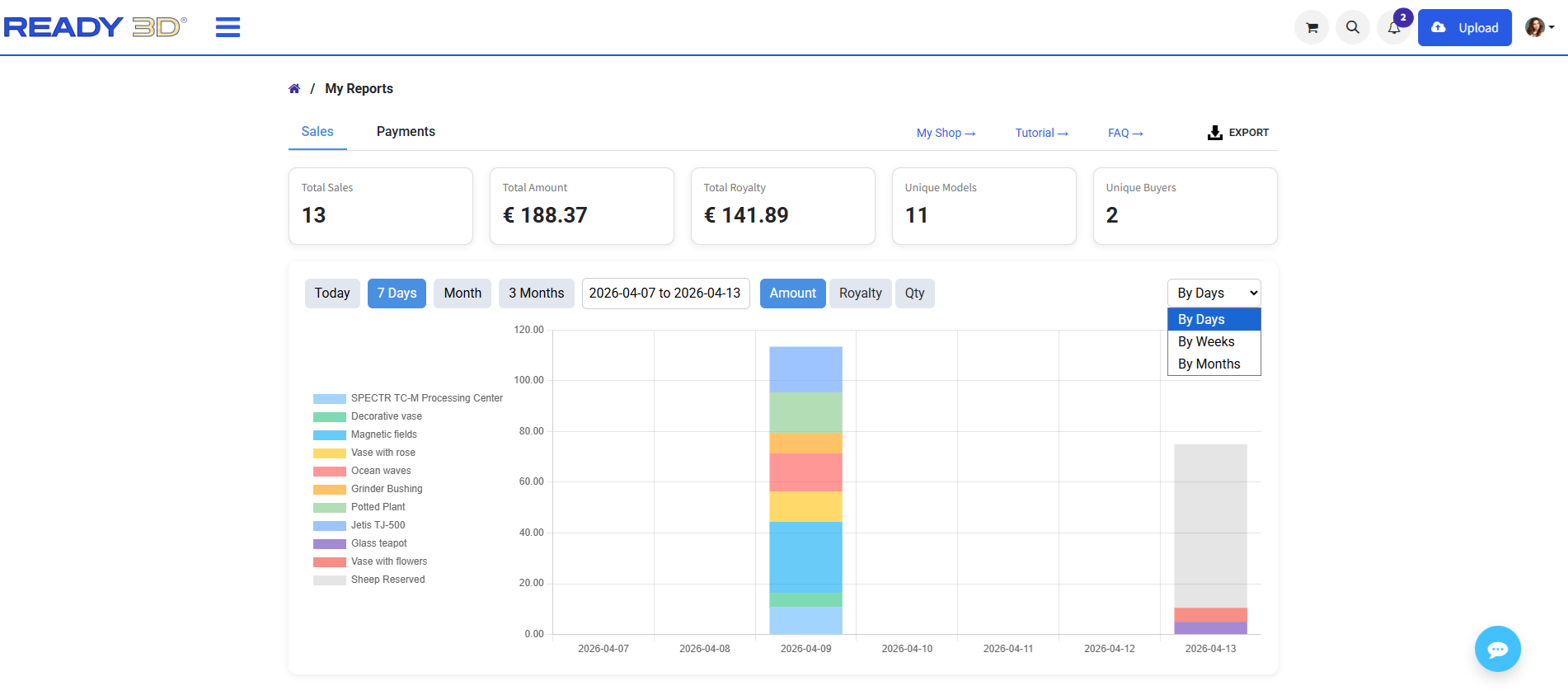
You can also group the filtered results by days, weeks, or months using the dropdown menu on the right to track sales trends over time.
Exporting Reports
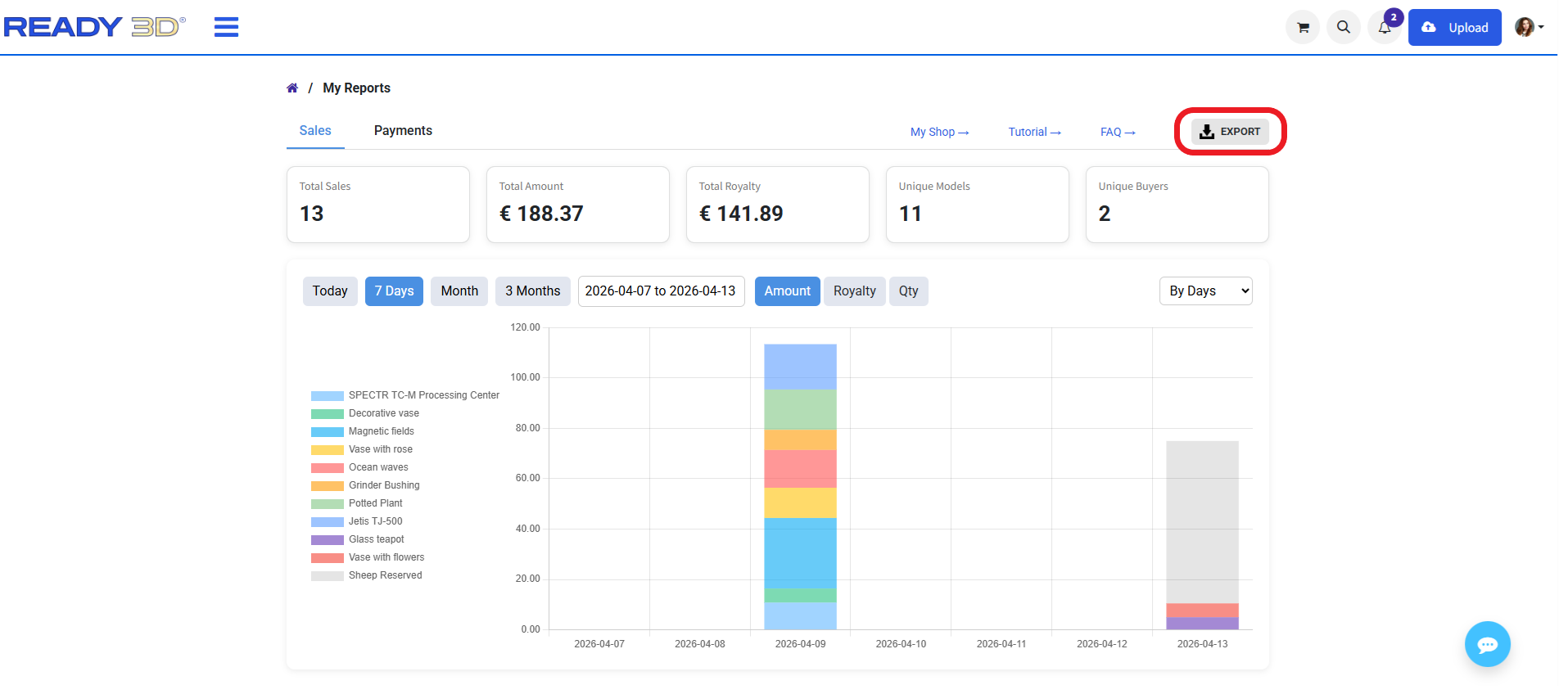
You can download your currently filtered sales data to an Excel file for offline accounting or detailed analysis. Clicking the Export button will generate a spreadsheet matching your selected date range and metrics.
The exported report includes detailed transaction data:
- Model Name — title of the sold 3D asset.
- Sale Amount — total price paid for the model.
- Buyer Information — customer details.
- Purchase Location — buyer's country or region
Payout History
You can view payout information for different periods, including daily, weekly, monthly, or custom selected dates. You can also group payout data by days, weeks, or months depending on your preferences.
Additional Information
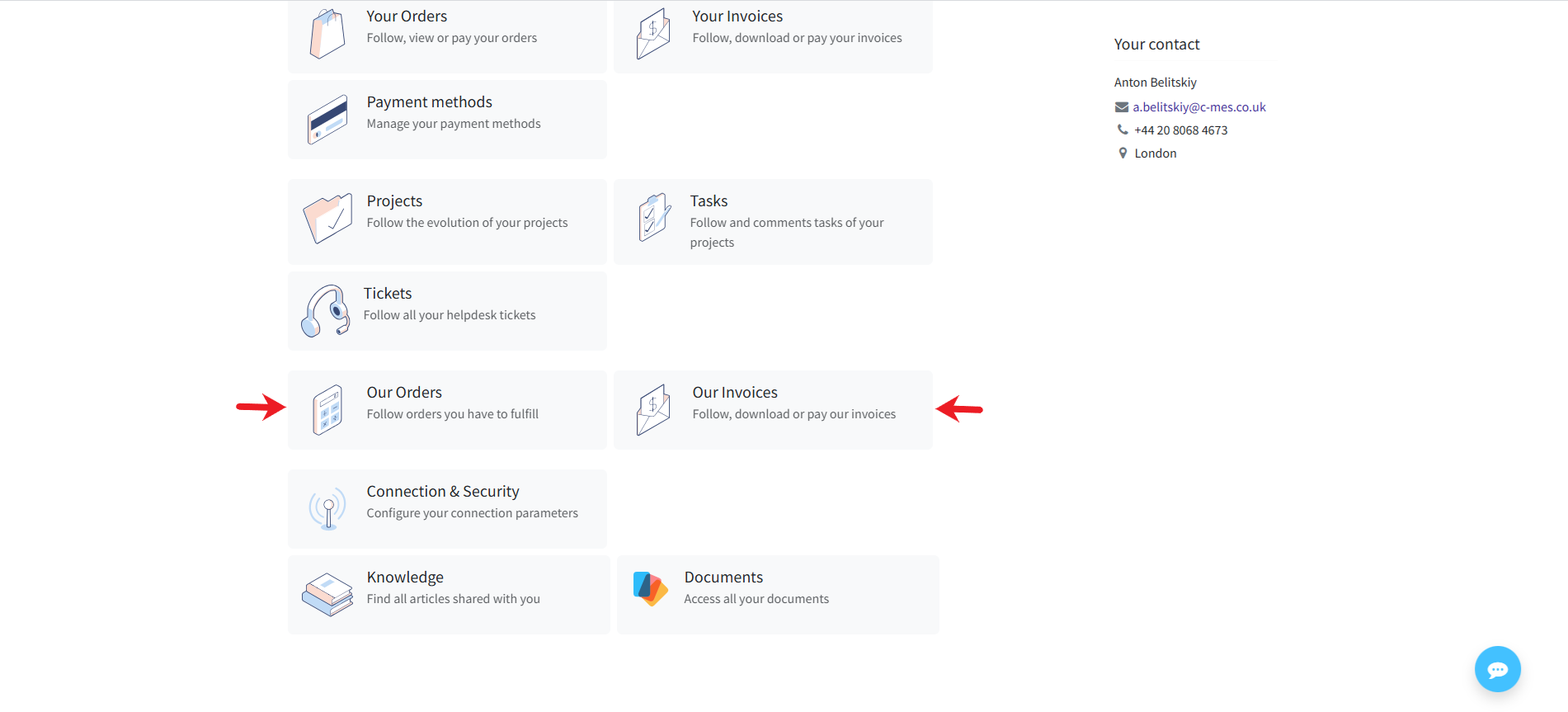
Your sales are tracked in real-time and reflected in the “Our Orders” section of your personal account.
Every month, on the 1st day, a summary invoice is automatically generated based on all sales from the previous month. The invoice is available in the “Our Invoices” section. All payouts are processed strictly according to our marketplace rules.
Support and Quick Actions
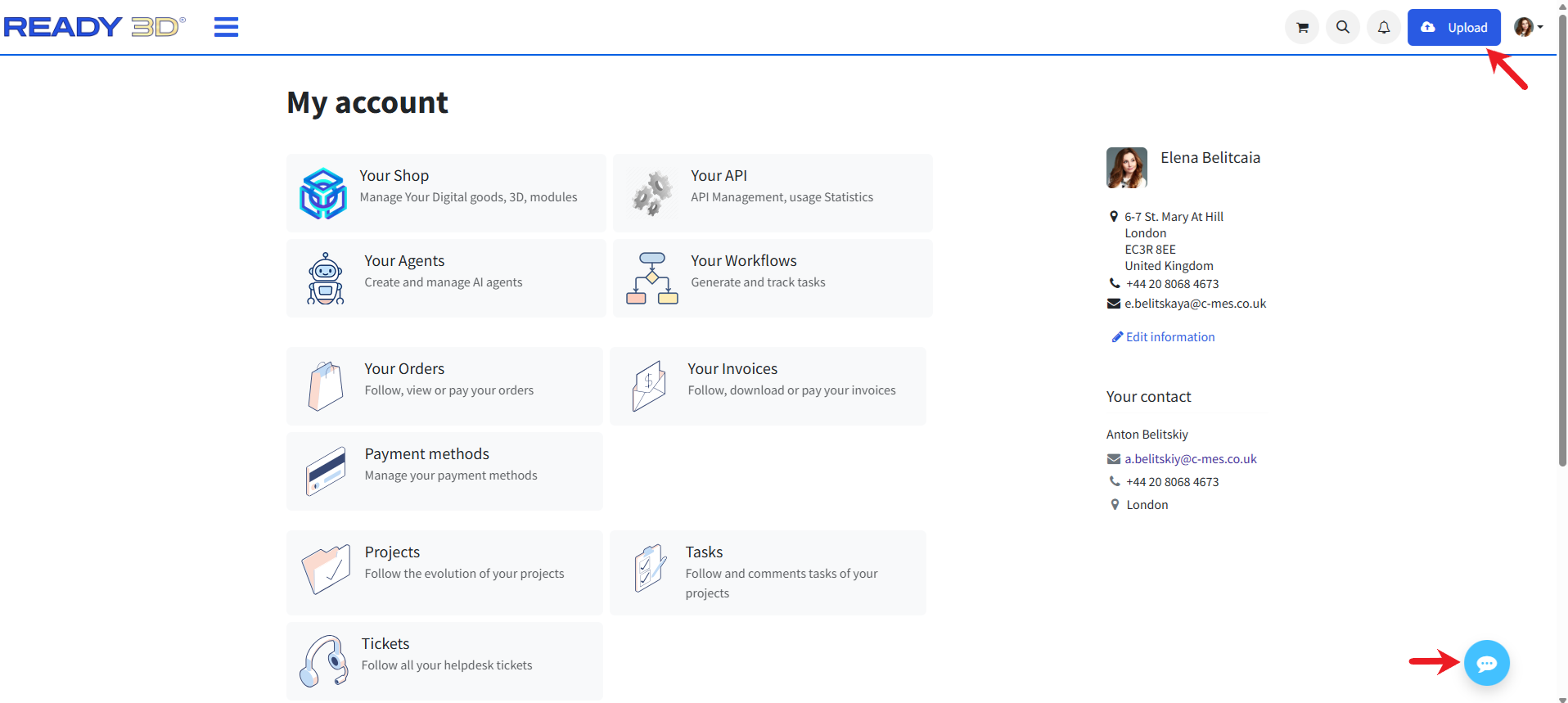
Uploading models to the marketplace is straightforward. Click the “Upload” button in the top-right corner to add your first 3D model and start selling.
If you have any questions about the platform operations or store management, you can contact us via the Live Chat widget or visit the Help Center for detailed guides.
Thank you for your attention and interest in our platform.
We wish you inspiration, creativity, and success in creating high-quality 3D models. We look forward to seeing your work in our store!
